Setup guide
Every step with a picture. The numbered red boxes are what to click or fill in, in that order.
1. Cara kerjanya How it works
Bot menjawab dari satu akun agen LiveChat milik Anda sendiri, misalnya akun bernama "Sarah". Pengunjung melihat nama dan foto akun itu, seperti CS biasa.
Jadi yang perlu disiapkan di LiveChat cuma tiga hal:
- Satu akun agen khusus bot - bukan akun owner, bukan akun yang dipakai orang.
- Di grup situs Anda, akun itu sebagai satu-satunya Primary agent - CS Anda tetap di grup itu sebagai Backup agent.
- Pengunjung situs masuk ke grup itu (Routing rules), dan grupnya memakai Auto assignment.
The bot answers from one LiveChat agent account of your own, for example an account called "Sarah". Visitors see that account's name and picture, like any CS.
So LiveChat needs only three things:
- One agent account just for the bot - not the owner's, not an account a person uses.
- In your website's group, that account as the only Primary agent - your CS stay in the group as Backup agents.
- Visitors of the site arriving in that group (Routing rules), and the group on Auto assignment.
2. Buat akun khusus bot Make an account just for the bot
OWNER / ADMIN LiveChat LiveChat OWNER / ADMIN2.1 Team > Agents, lalu Invite agents Team > Agents, then Invite agents
- Masuk ke https://my.livechatinc.com/ sebagai owner atau admin.
- Klik Team (gambar dua orang) di menu kiri, lalu tab Agents.
- 1 Klik Invite agents.
- Sign in to https://my.livechatinc.com/ as the owner or an admin.
- Click Team (two people) in the left menu, then the Agents tab.
- 1 Click Invite agents.
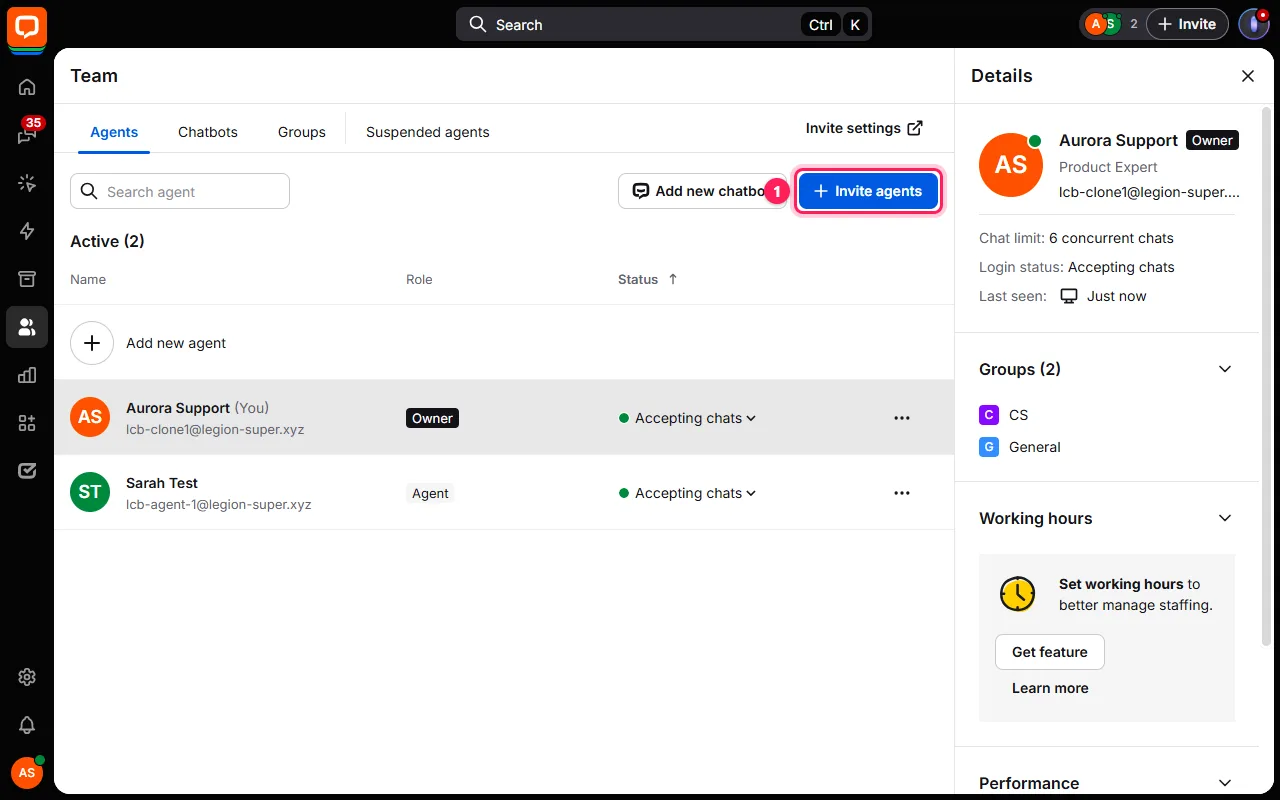
2.2 Undang email khusus bot Invite an email just for the bot
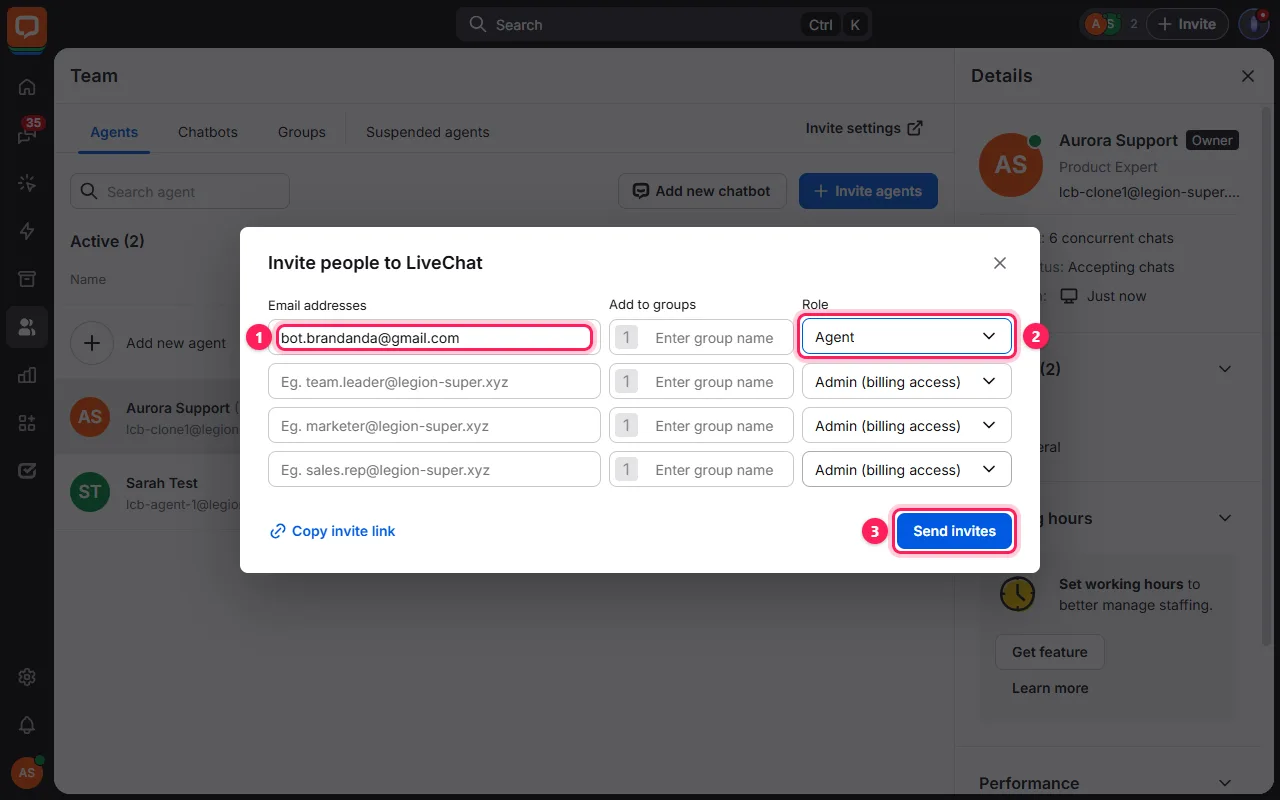
- 1 Ketik email baru khusus bot yang bisa Anda buka - undangannya dikirim ke sana.
- 2 Role: Agent.
- 3 Klik Send invites.
- Buka email itu, terima undangan, buat kata sandi.
- Masuk ke LiveChat sebagai akun bot, lalu isi nama dan foto di profilnya. Inilah yang dilihat pengunjung. Pakai nama depan biasa, seperti CS lain.
- 1 Type a new email just for the bot that you can open - the invitation goes there.
- 2 Role: Agent.
- 3 Click Send invites.
- Open that email, accept the invitation and choose a password.
- Sign in to LiveChat as the bot account and set its name and picture in its profile. Visitors see exactly these. Use a plain first name, like the rest of your team.
3. Bot di grup situs Anda The bot in your website's group
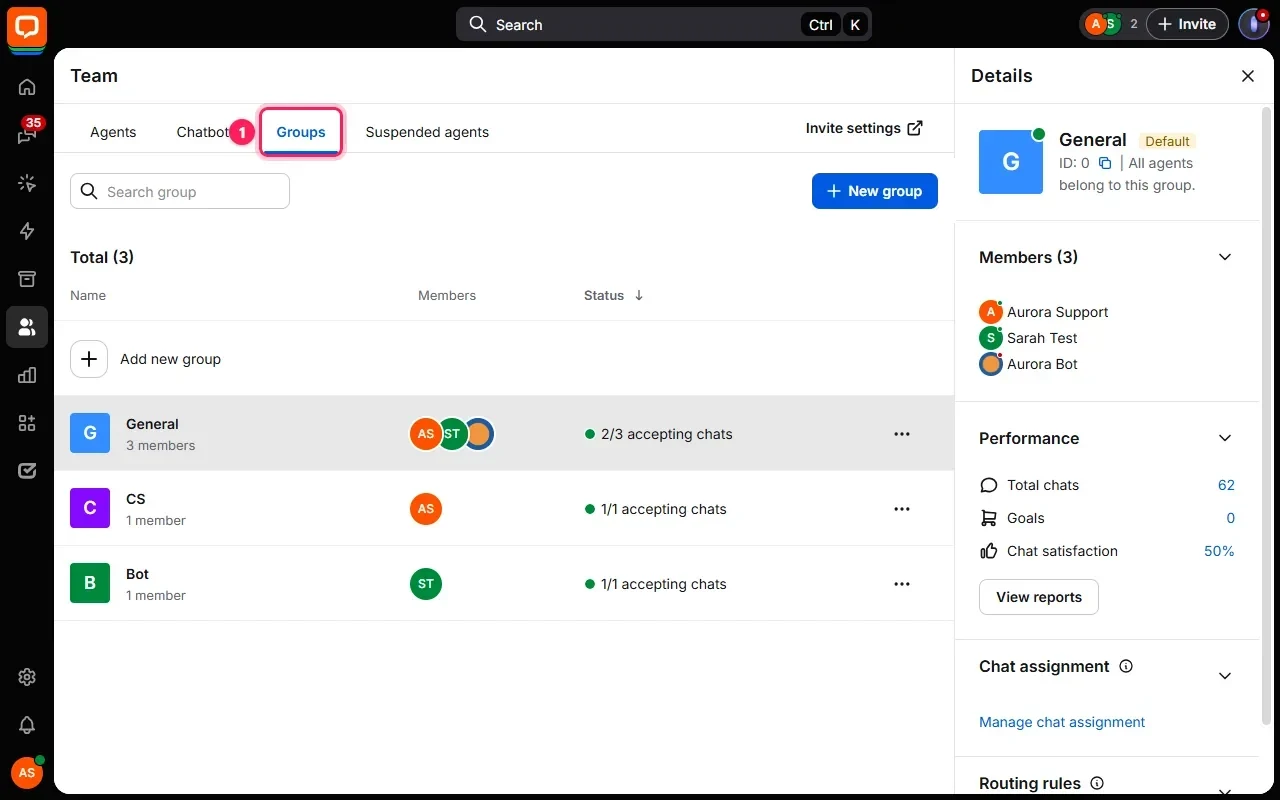
OWNER / ADMIN LiveChat LiveChat OWNER / ADMIN3.1 Team > Groups: grup situs Anda Team > Groups: your website's group
1 Tab Groups. Cari grup situs Anda - tidak ada yang perlu dibuat baru.
1 The Groups tab. Find your website's group - nothing new to create.
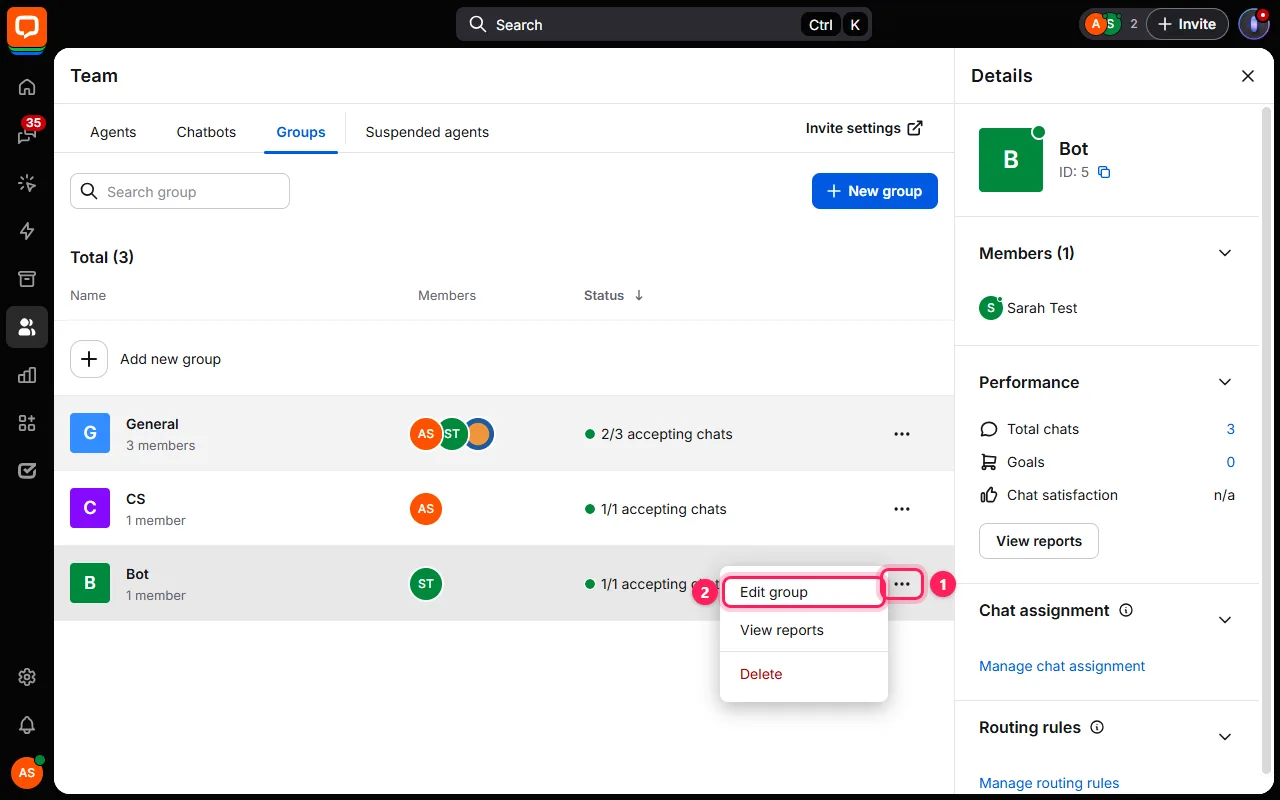
3.2 Edit group Edit group
- 1 Tombol ... di ujung kanan baris grup.
- 2 Edit group.
- 1 The ... button at the end of the group's row.
- 2 Edit group.
3.3 Akun bot: Primary agent The bot account: Primary agent
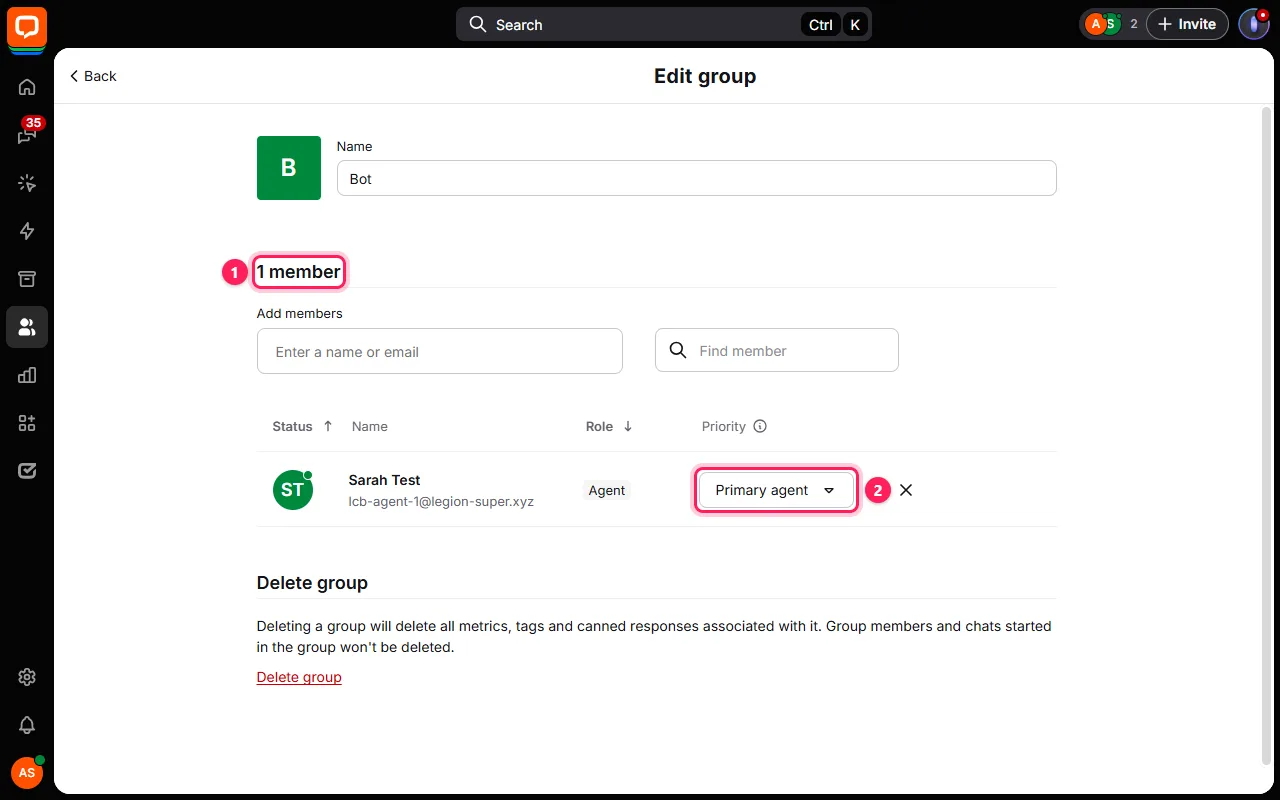
- 1 Anggotanya: akun bot dan CS Anda. Akun bot belum ada? Ketik namanya di Add members lalu pilih.
- 2 Priority akun bot: Primary agent.
- 1 The members: the bot account and your CS. The bot account not there? Type its name under Add members and pick it.
- 2 The bot account's Priority: Primary agent.
3.4 Yang lain: Backup agent Everyone else: Backup agent
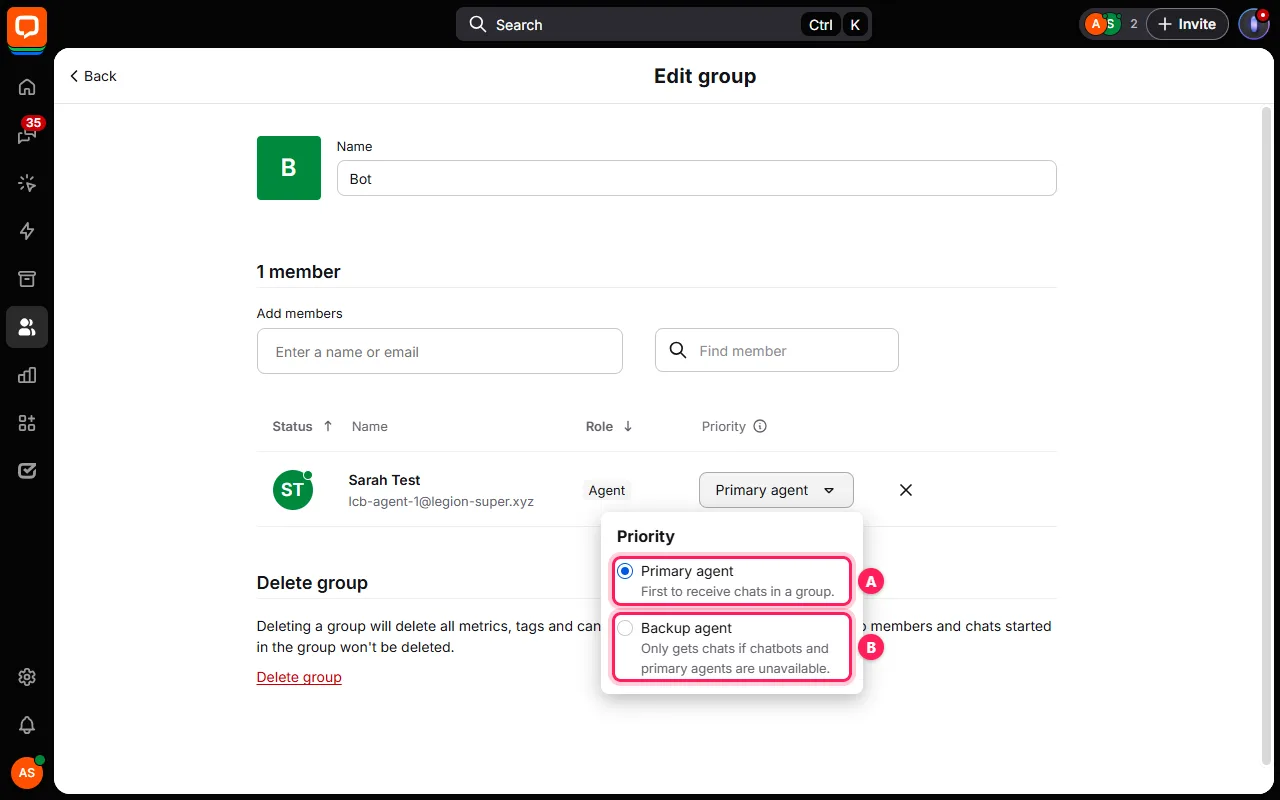
- A Primary agent: menerima chat baru lebih dulu. Hanya akun bot.
- B Backup agent: semua orang lain di grup, yaitu CS Anda. Mereka menerima setiap chat yang dialihkan bot, dan chat baru saat bot tidak bisa menerimanya.
- A Primary agent: gets new chats first. The bot account only.
- B Backup agent: everyone else in the group, your CS. They get every chat the bot passes on, and new chats whenever the bot cannot take them.
4. Auto assignment Auto assignment
OWNER / ADMIN LiveChat LiveChat OWNER / ADMIN4.1 Settings > Chat assignment Settings > Chat assignment
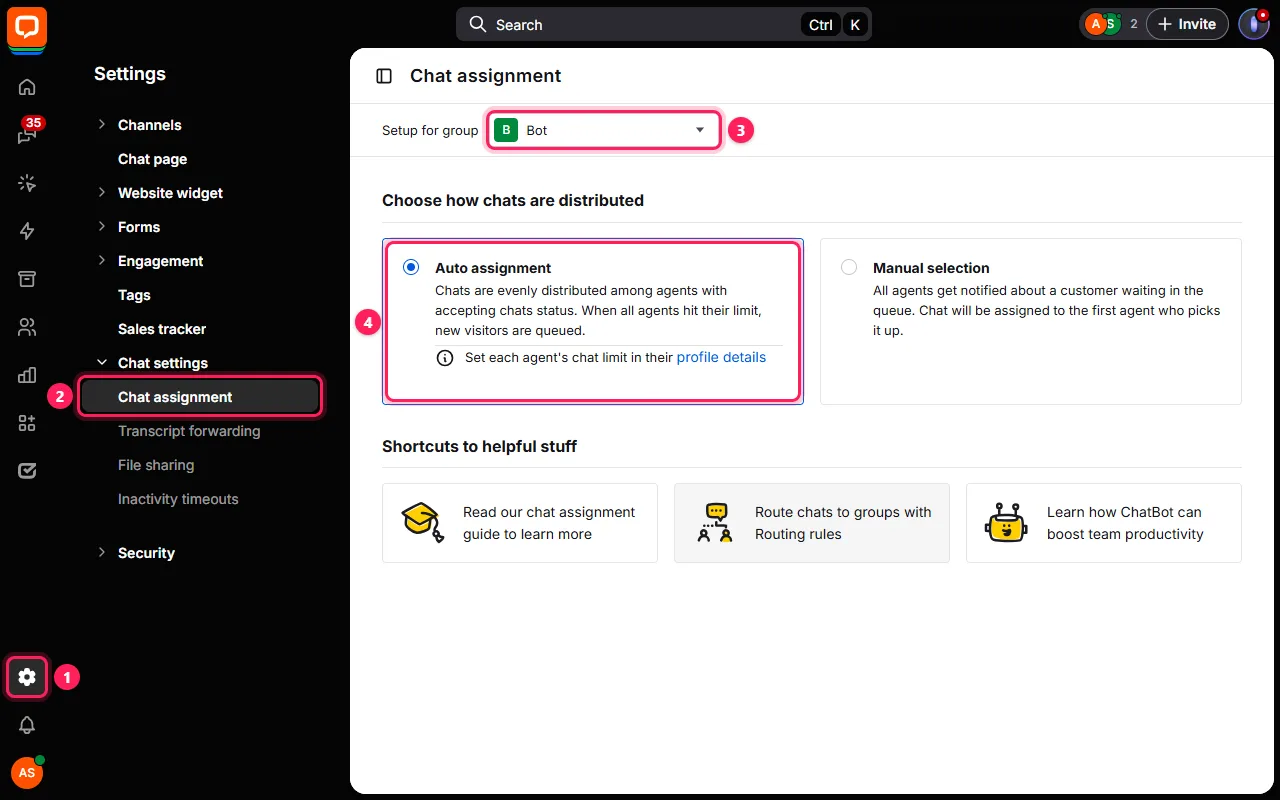
Tanpa ini, chat hanya menunggu di antrian dan bot tidak pernah menerimanya.
- 1 Settings (roda gigi, kiri bawah).
- 2 Chat settings > Chat assignment.
- 3 Setup for group: grup situs Anda.
- 4 Auto assignment. LiveChat langsung menyimpannya.
Without it, chats wait in the queue and the bot never gets one.
- 1 Settings (the gear, bottom left).
- 2 Chat settings > Chat assignment.
- 3 Setup for group: your website's group.
- 4 Auto assignment. LiveChat saves it at once.
5. Chat dari situs Anda masuk ke grupnya Chats from your site arrive in its group
OWNER / ADMIN LiveChat LiveChat OWNER / ADMIN5.1 Automate > Routing rules Automate > Routing rules
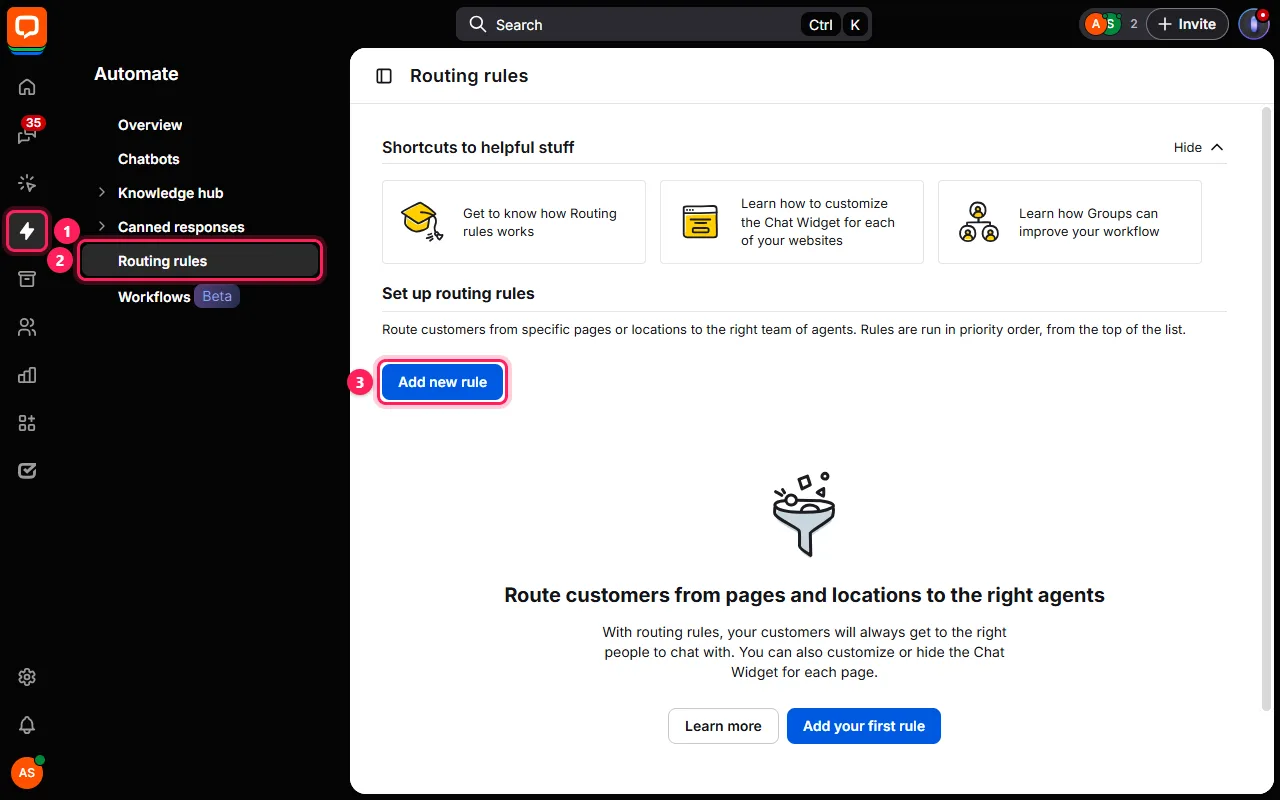
- 1 Automate (ikon petir).
- 2 Routing rules.
- 3 Add new rule, kalau situs Anda belum punya.
- 1 Automate (the lightning bolt).
- 2 Routing rules.
- 3 Add new rule, if your site has none.
5.2 Aturannya The rule
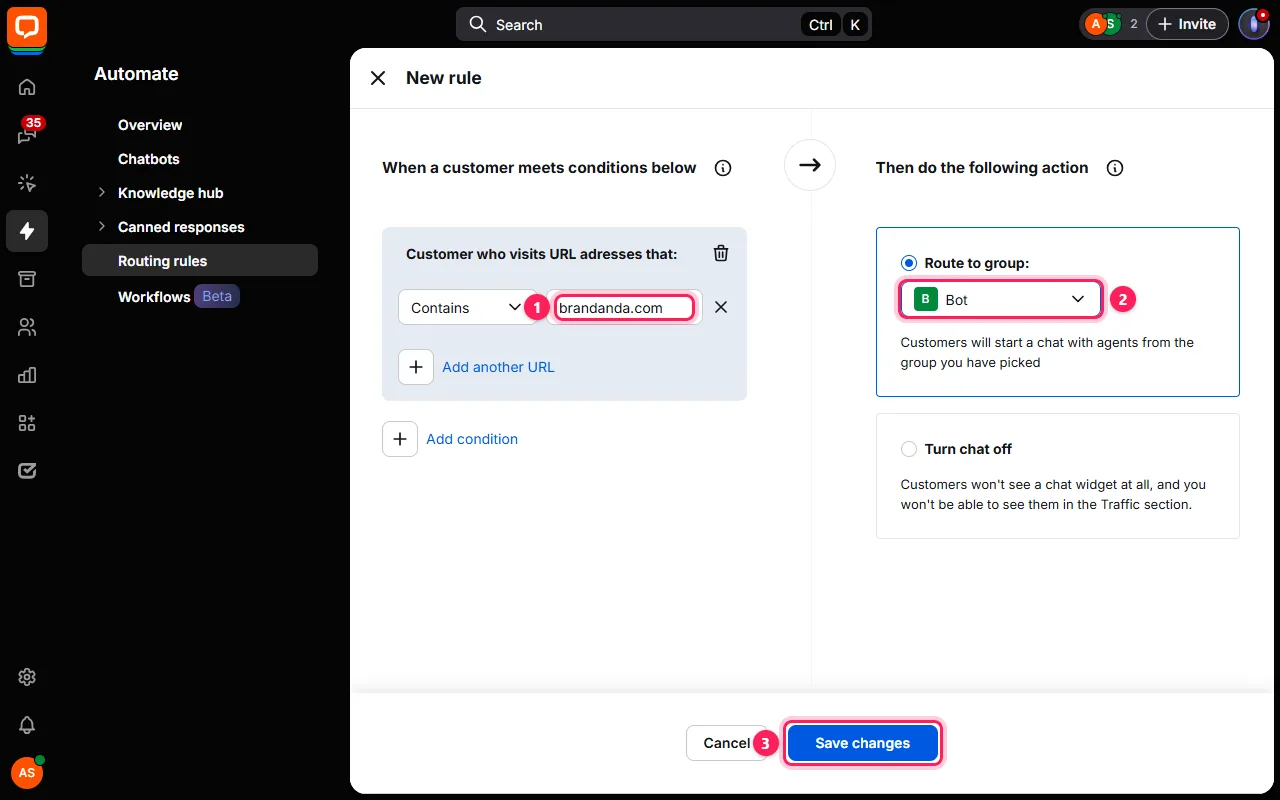
- 1 Biarkan Contains, lalu ketik alamat situs Anda, contoh
brandanda.com. - 2 Route to group: grup situs Anda.
- 3 Save changes.
- 1 Keep Contains and type your site's address, e.g.
brandanda.com. - 2 Route to group: your website's group.
- 3 Save changes.
6. Buat kode akses, sebagai akun bot Make the access code, as the bot account
MASUK SEBAGAI AKUN BOT SIGNED IN AS THE BOT ACCOUNT6.1 Halaman kode akses The access code page
- Di Koneksi (langkah 8.1) klik Buka halaman kode akses.
- Masuk dengan akun bot.
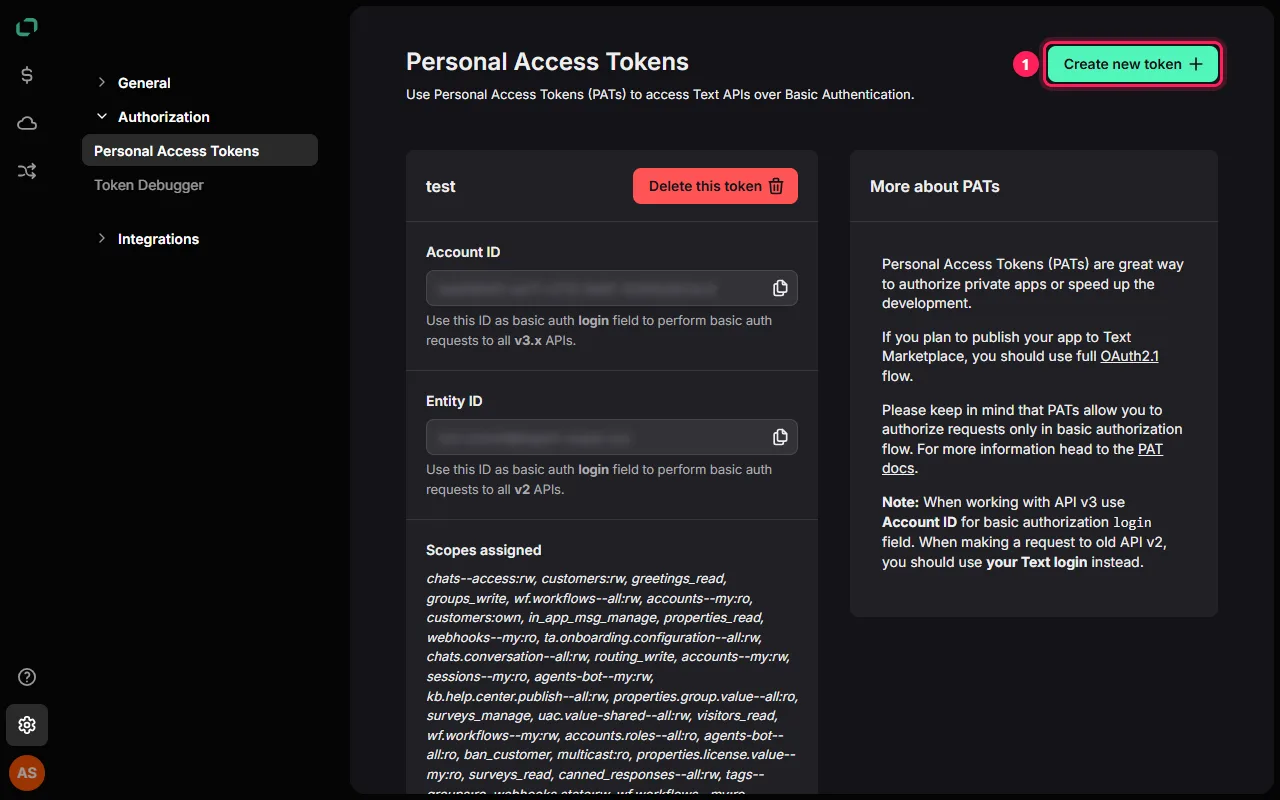
- 1 Create new token.
- On Connections (step 8.1) click Open the access code page.
- Sign in with the bot account.
- 1 Create new token.
6.2 Nama, lalu "Select all" A name, then "Select all"
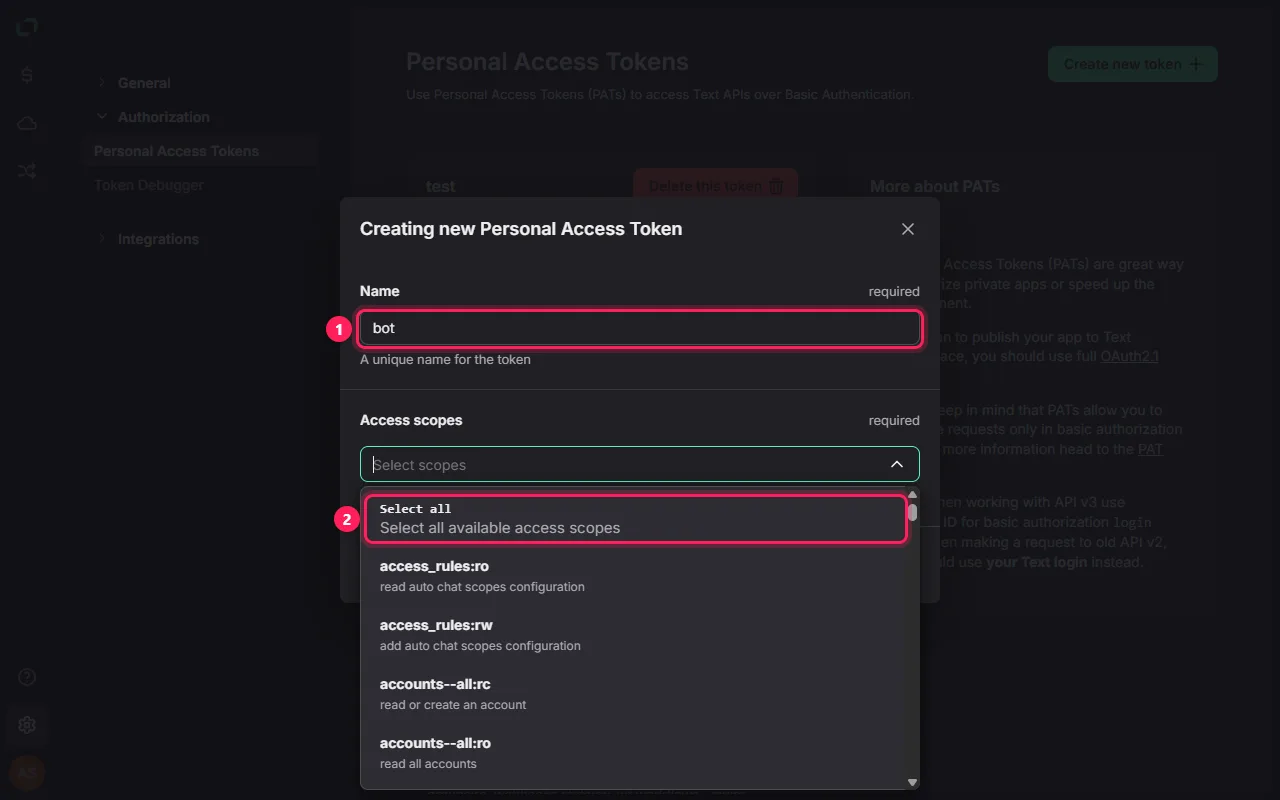
- 1 Name: apa saja, misalnya bot.
- 2 Klik Access scopes lalu pilih baris paling atas: Select all.
- 1 Name: anything, e.g. bot.
- 2 Click Access scopes and pick the first line: Select all.
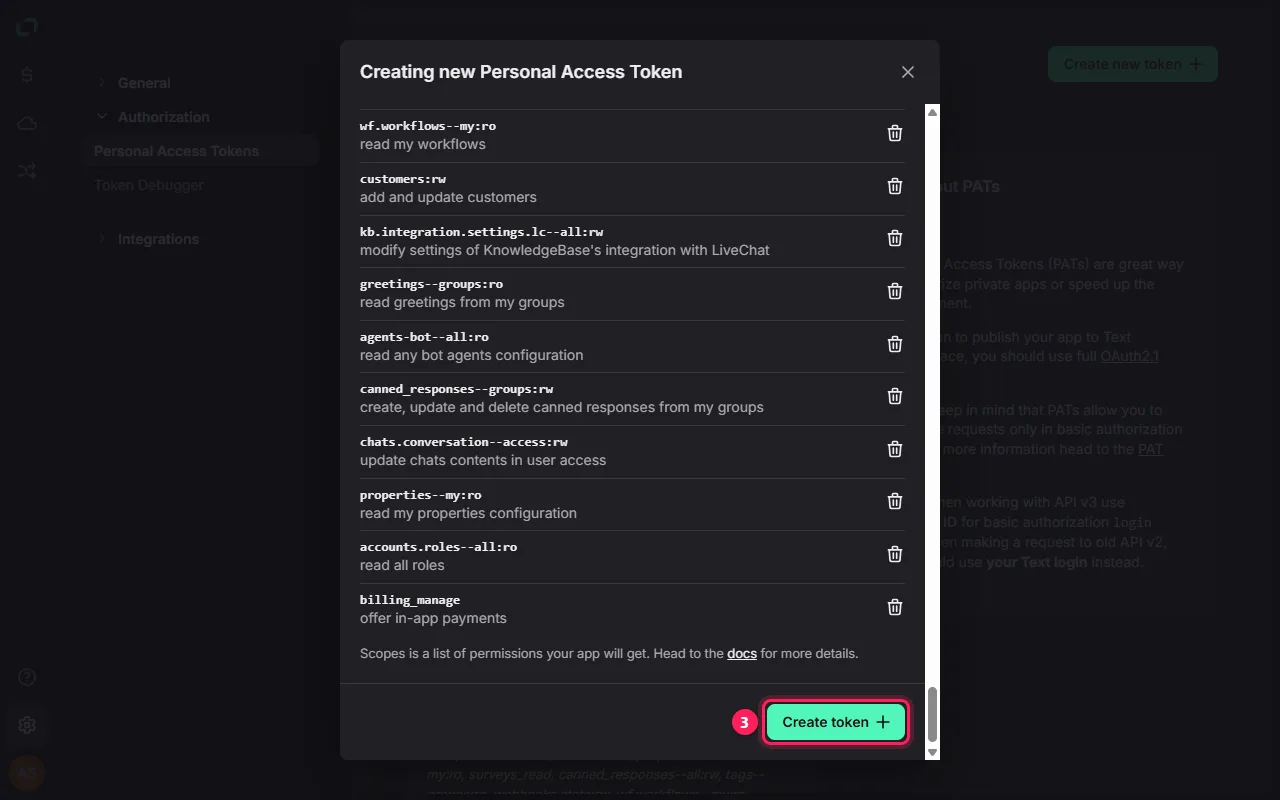
6.3 Gulir ke bawah Scroll down the list
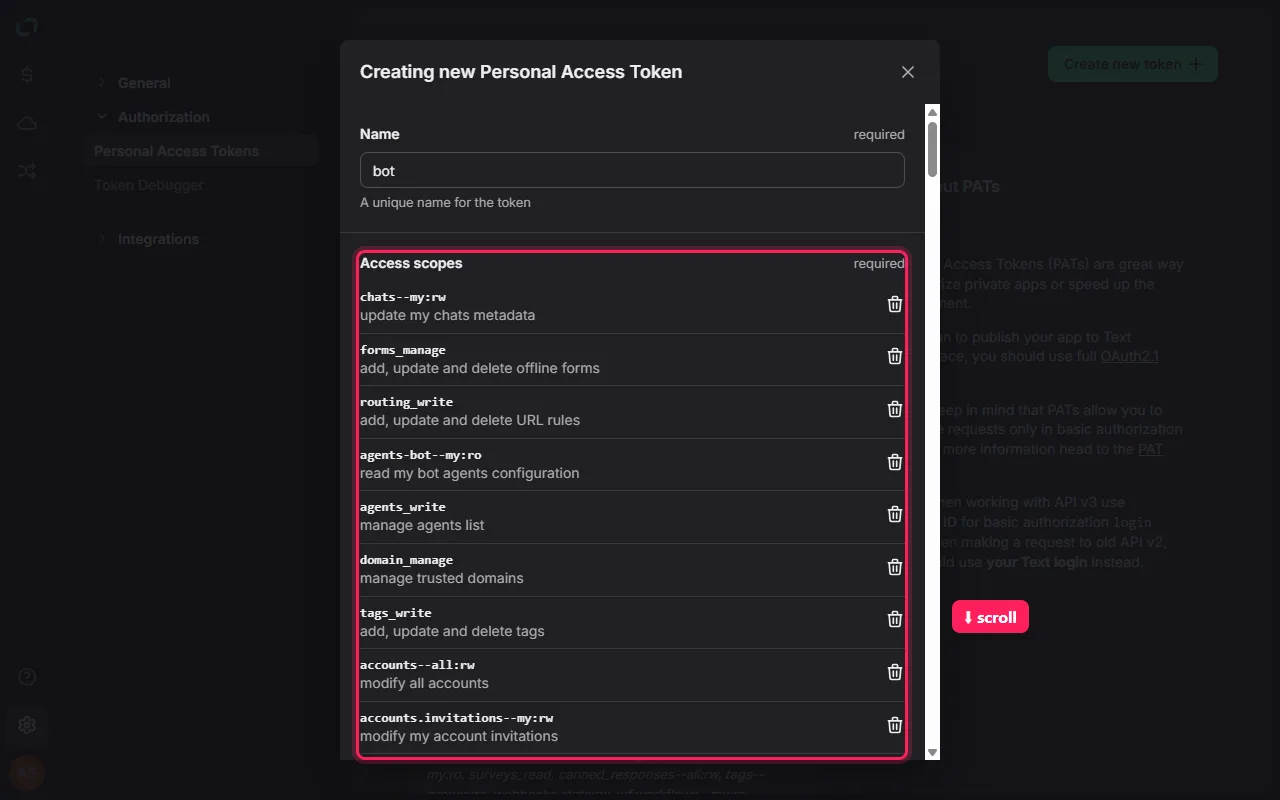
Muncul daftar panjang. Jangan diubah: gulir ke bawah di dalam kotak sampai tombol Create token.
A long list appears. Change nothing: scroll down inside the box to the Create token button.
6.4 Create token Create token
3 Create token.
3 Create token.
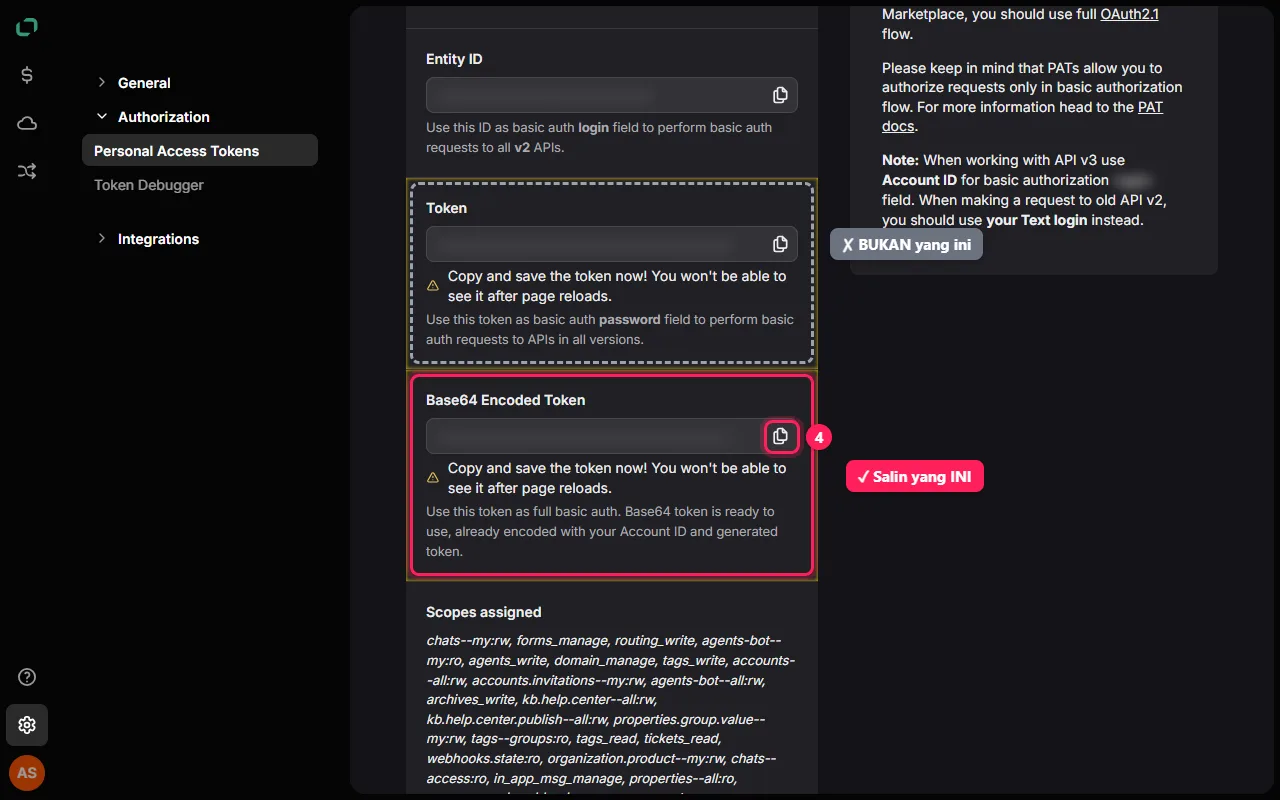
6.5 Salin "Base64 Encoded Token" Copy "Base64 Encoded Token"
- Bukan kotak "Token".
- 4 Salin kotak paling bawah, Base64 Encoded Token, dengan tombol salinnya.
- Langsung tempel di Koneksi (langkah 8.1): kode ini hanya tampil sekali.
- Not the "Token" box.
- 4 Copy the last box, Base64 Encoded Token, with its copy button.
- Paste it on Connections right away (step 8.1): it is shown only once.
7. Masuk ke situs ini Sign in here
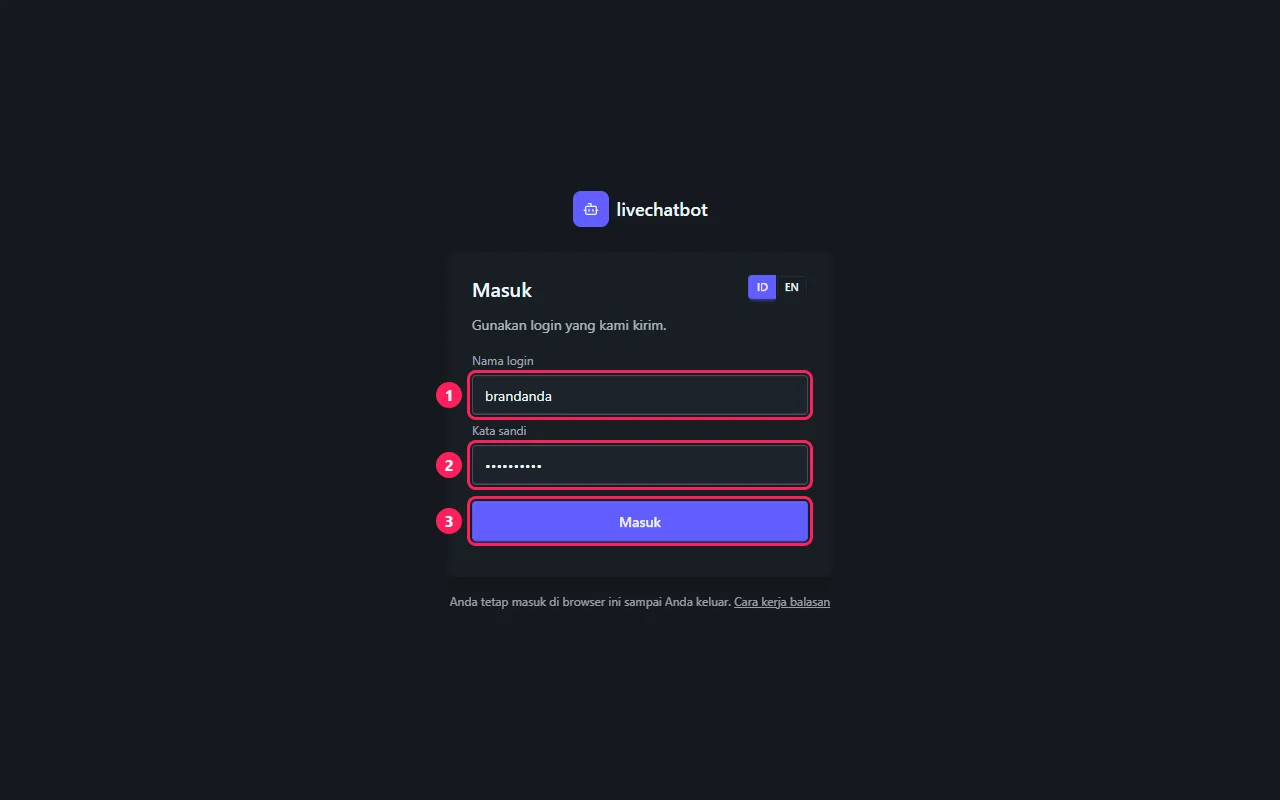
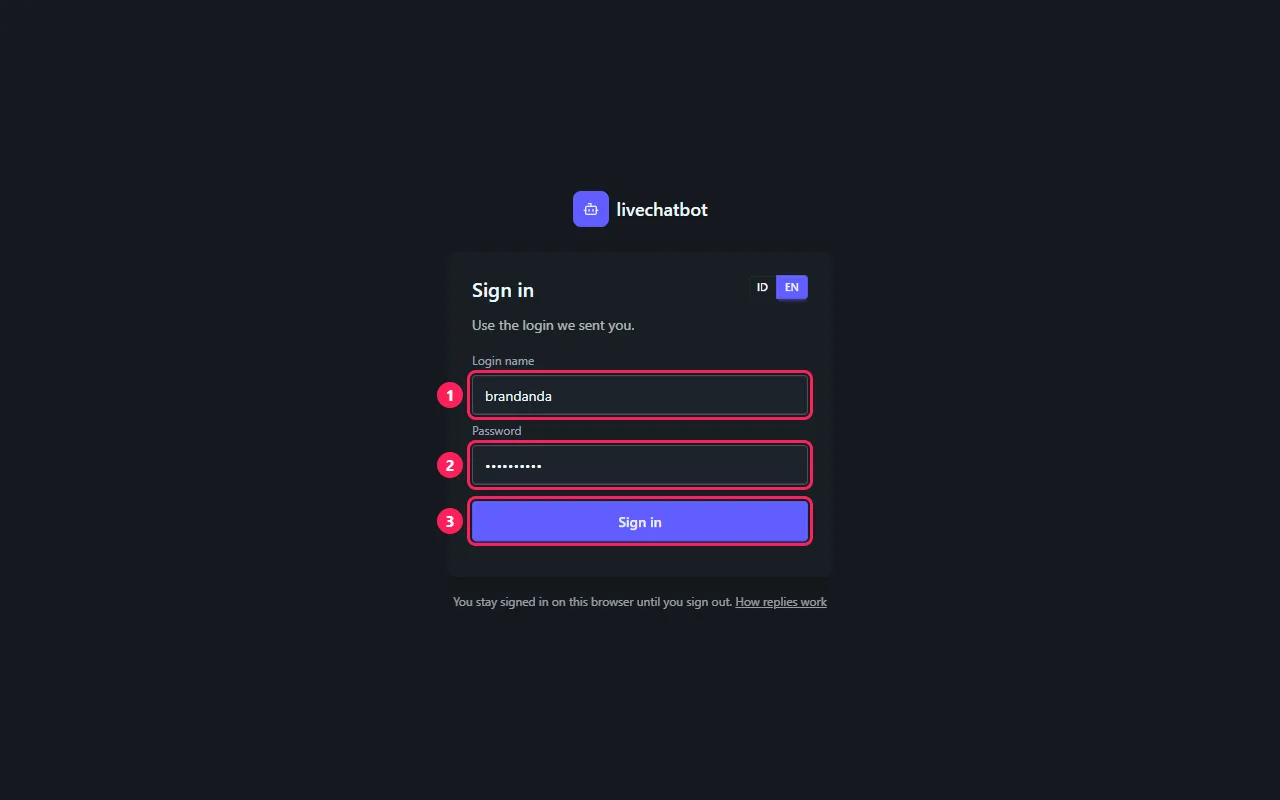
ADMIN BOT (situs ini) BOT ADMIN (this site)7.1 Alamat dan login yang kami kirim The address and the login we sent you
- Buka alamat admin yang kami kirim - berakhiran
/admin. Simpan sebagai bookmark. - 1 Nama login dan 2 kata sandi yang kami kirim: satu login untuk satu bot.
- 3 Masuk. Anda tetap masuk di browser ini sampai keluar. ID / EN di kanan atas mengganti bahasa.
- Lupa kata sandi? Hubungi kami: kami kirimkan lagi.
- Open the admin address we sent you - it ends in
/admin. Bookmark it. - 1 The login name and 2 password we sent you: one login per bot.
- 3 Sign in. You stay signed in on this browser until you sign out. ID / EN, top right, switches the language.
- Forgot the password? Ask us: we send it to you again.
7.2 Keluar Sign out
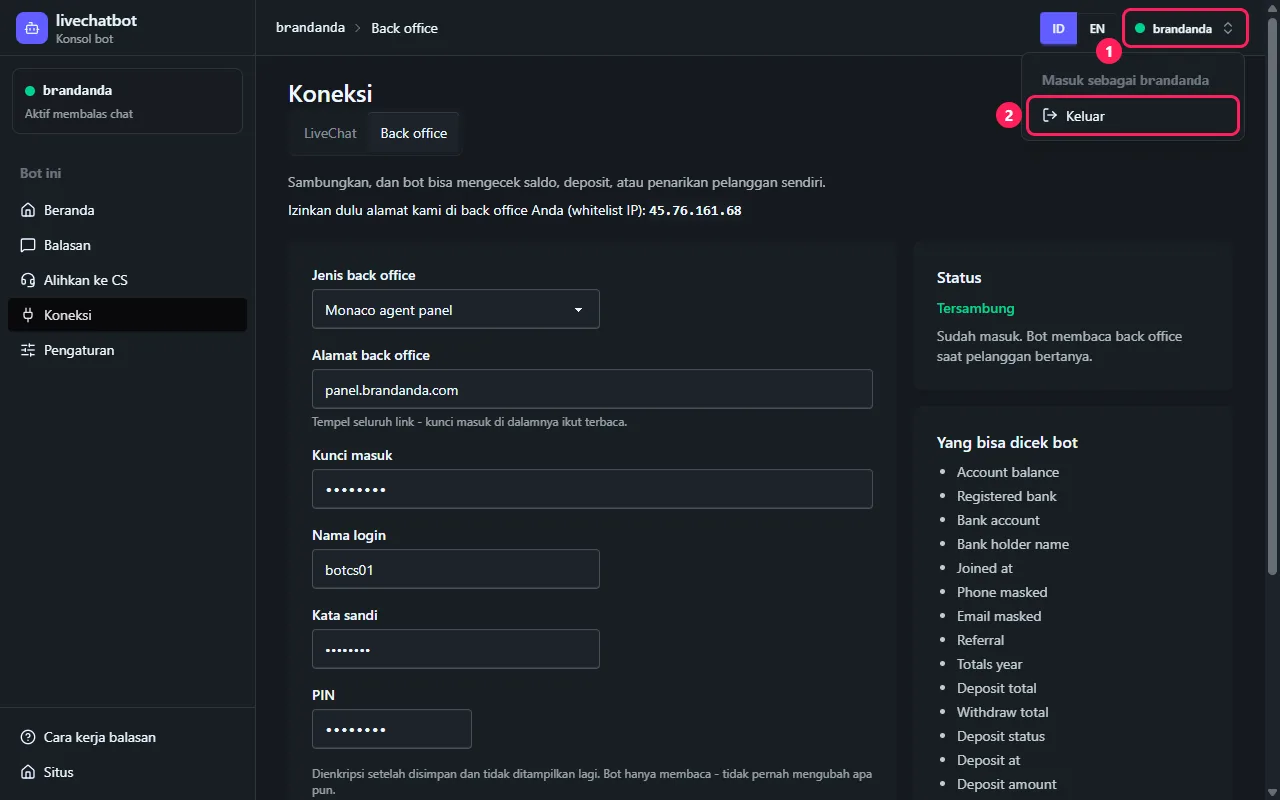
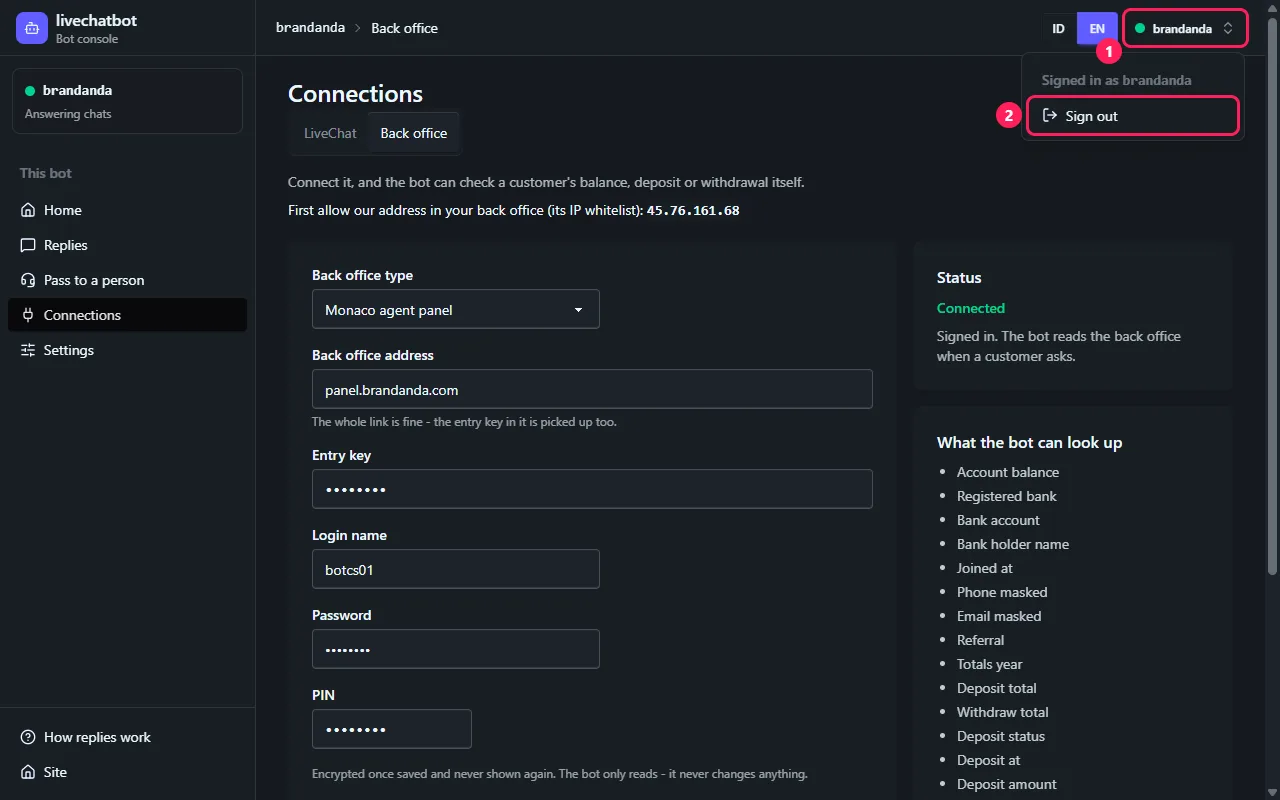
- 1 Nama login Anda di kanan atas (di ponsel, titiknya).
- 2 Keluar. Selalu lakukan di komputer bersama.
- 1 Your login name, top right (on a phone, the dot).
- 2 Sign out. Always, on a shared computer.
8. Koneksi: empat langkah Connections: four steps
ADMIN BOT (situs ini) BOT ADMIN (this site)8.1 Langkah 1: tempel kode, tekan Periksa Step 1: paste the code, press Check
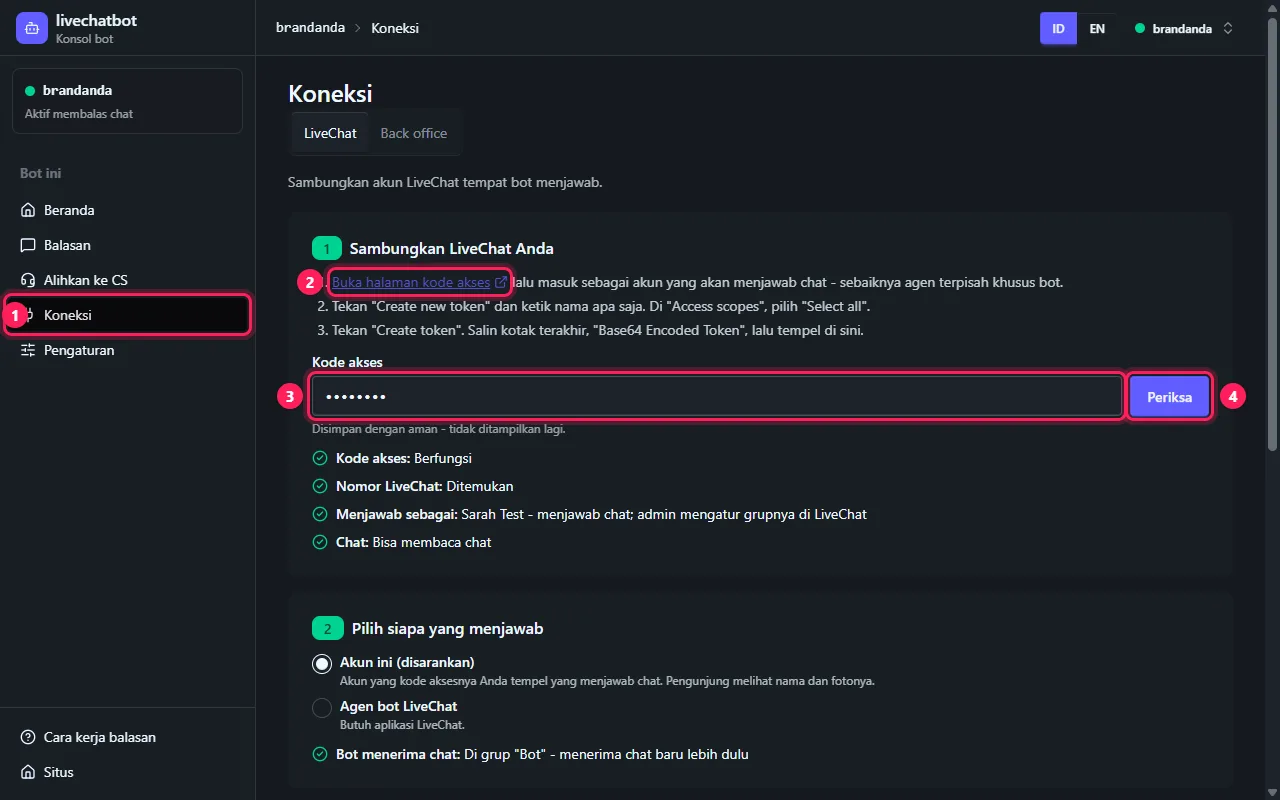
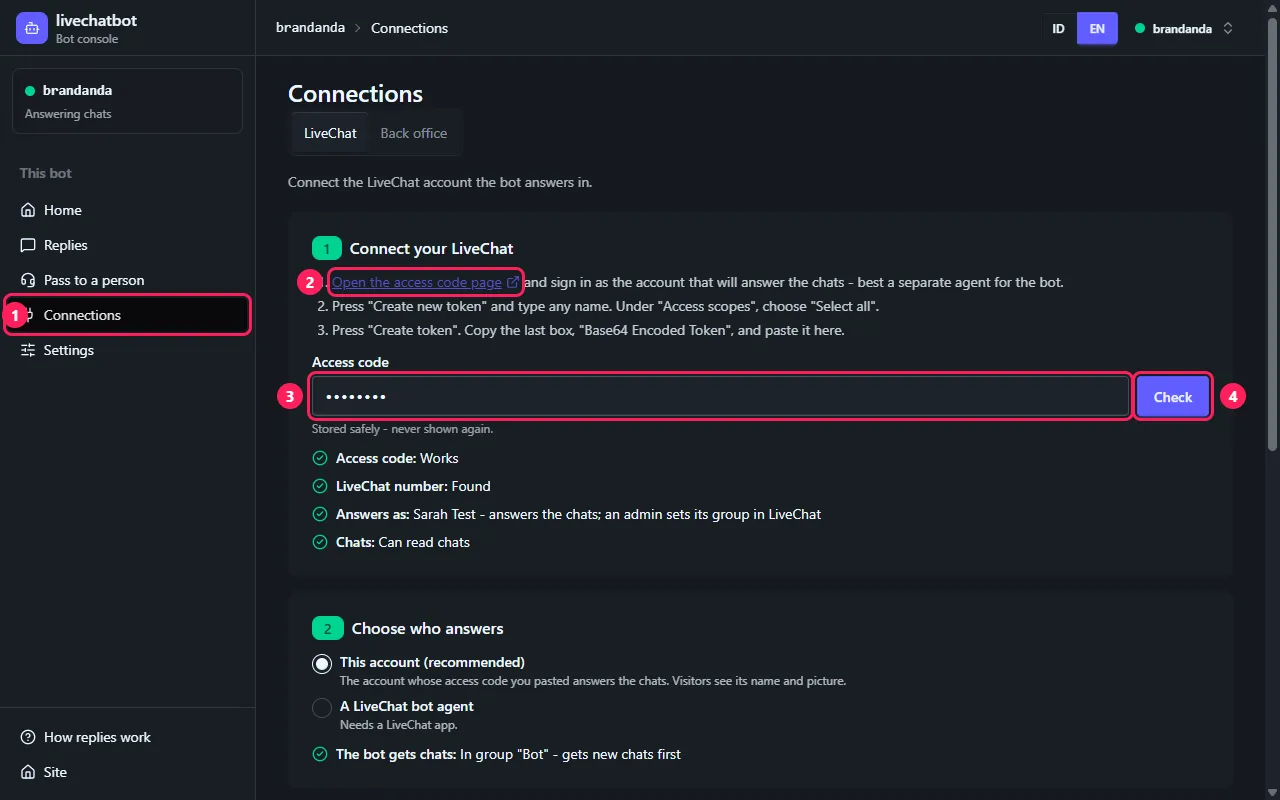
- 1 Koneksi.
- 2 Buka halaman kode akses membuka bagian 6.
- 3 Tempel Base64 Encoded Token.
- 4 Periksa.
- 1 Connections.
- 2 Open the access code page opens section 6.
- 3 Paste the Base64 Encoded Token.
- 4 Check.
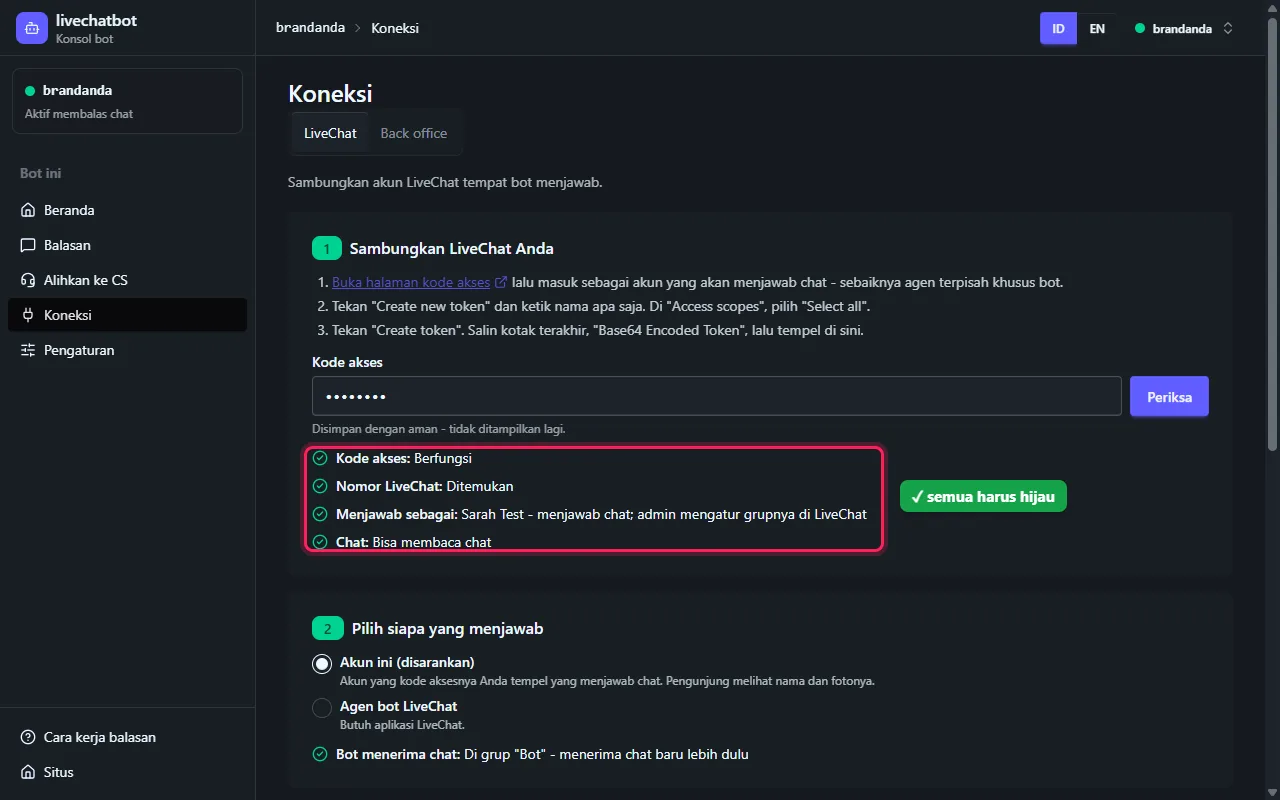
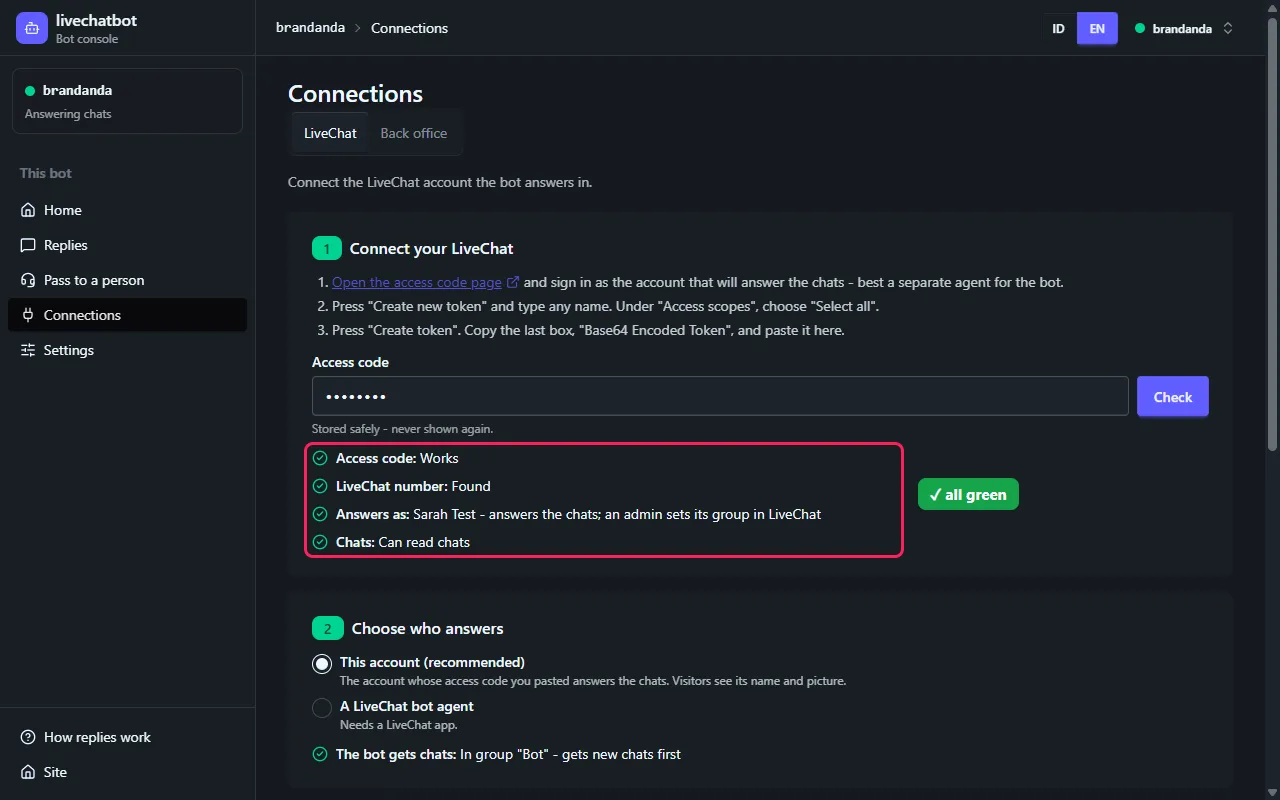
8.2 Semua baris hijau Every line green
Semua baris harus centang hijau. "Menjawab sebagai" menunjukkan nama akun bot.
Every line needs a green tick. "Answers as" shows the bot account's name.
8.3 Langkah 2: siapa yang menjawab Step 2: who answers
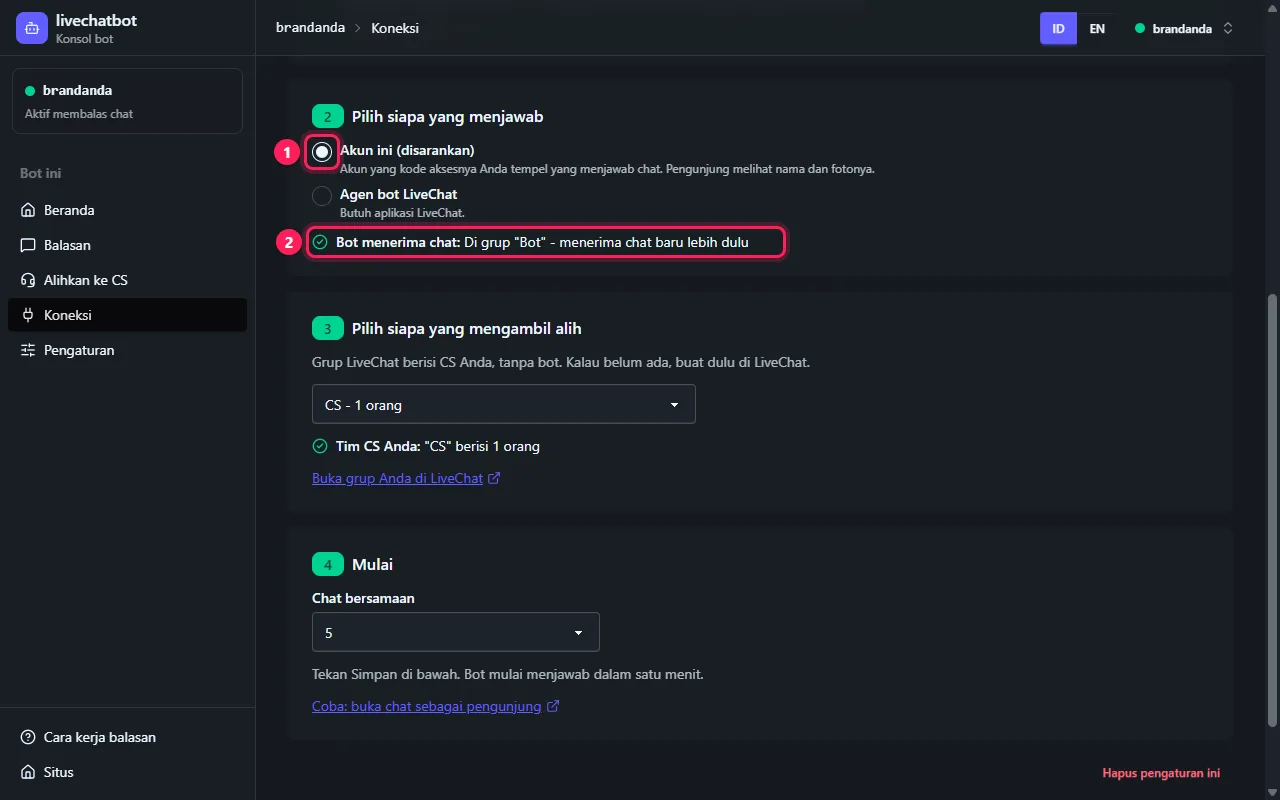
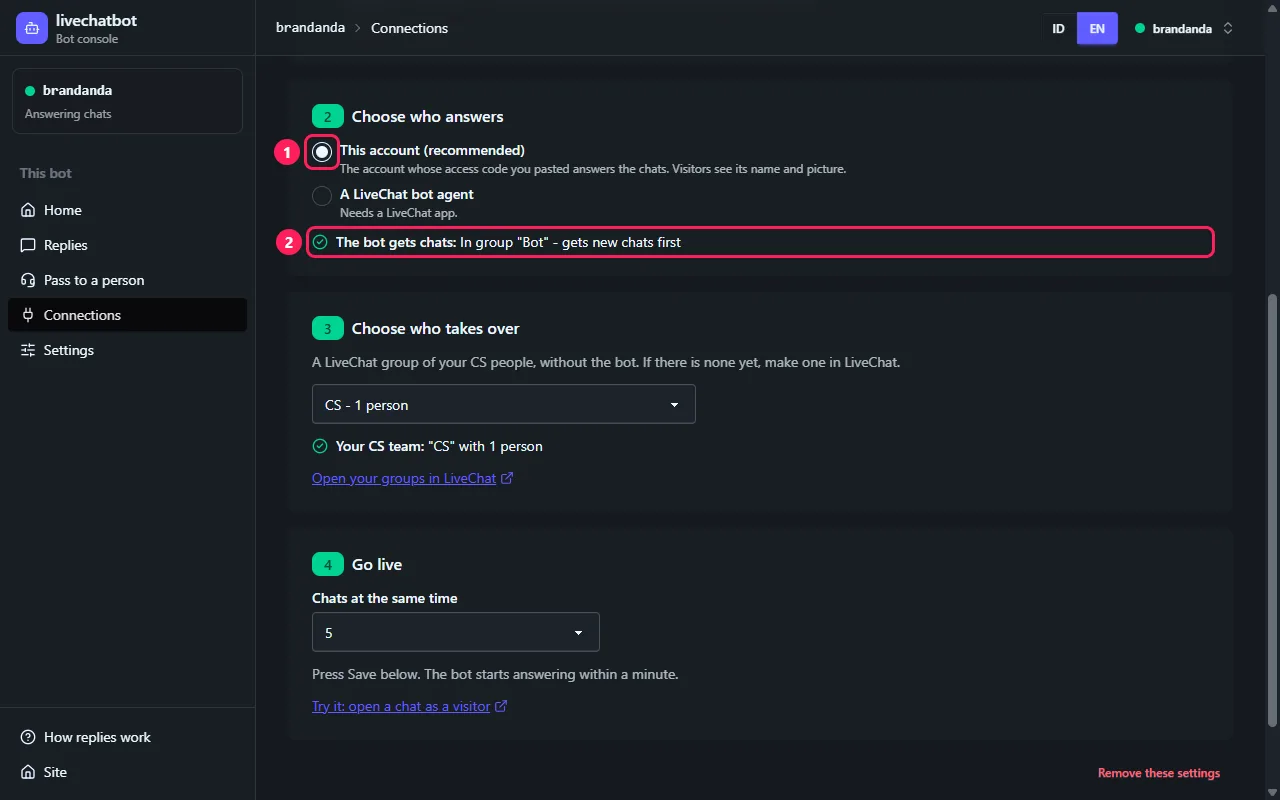
- 1 Akun ini (disarankan).
- 2 Bot menerima chat harus hijau.
- 1 This account (recommended).
- 2 The bot gets chats must be green.
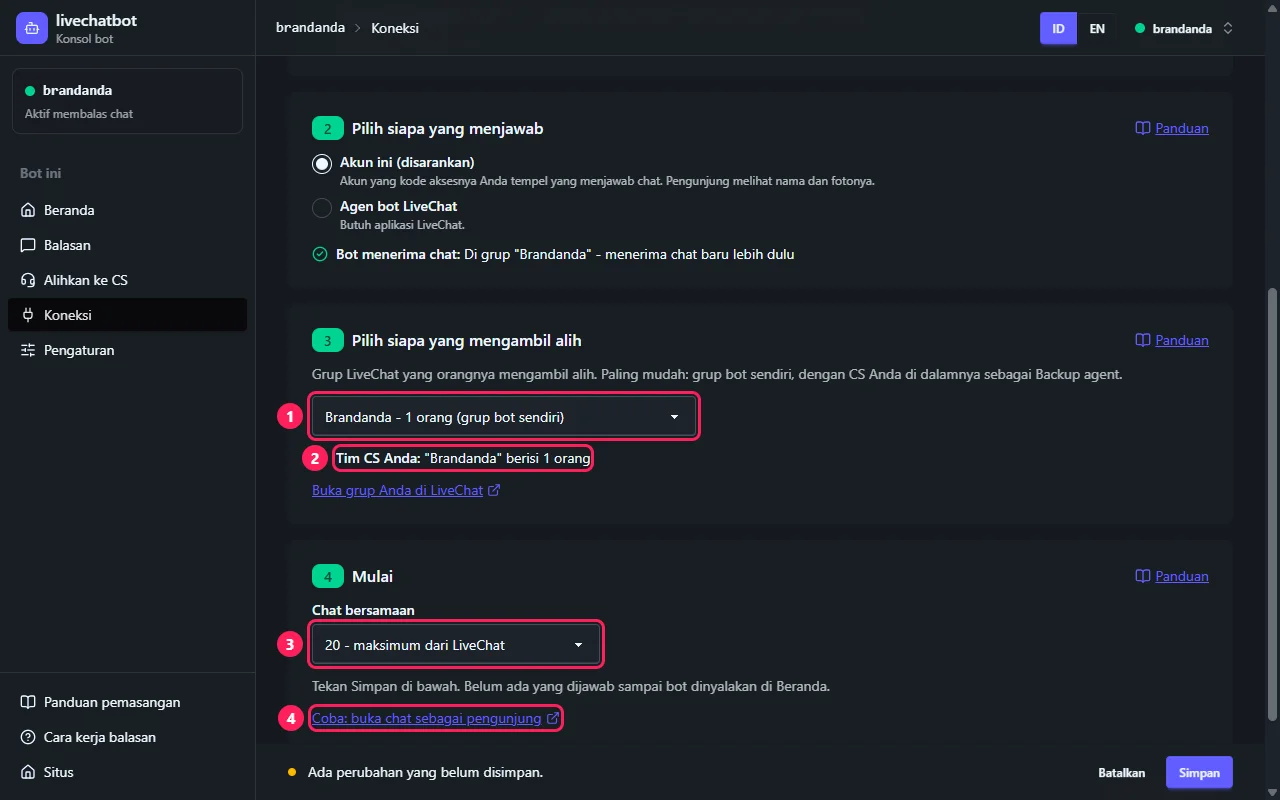
8.4 Langkah 3 dan 4: siapa yang mengambil alih, dan jumlah chat Steps 3 and 4: who takes over, and how many chats
- 1 Langkah 3: grup situs Anda - bertanda grup bot sendiri. CS Anda di dalamnya, sebagai Backup agent, yang mengambil alih.
- 2 Hijau: "..." berisi ... orang.
- 3 Chat bersamaan: pilih 20 - maksimum dari LiveChat untuk akun agen. Kalau bot penuh, chat baru masuk ke Backup agent di grup itu, atau menunggu di antriannya.
- 4 Coba: buka chat sebagai pengunjung, setelah disimpan dan bot dinyalakan di Beranda.
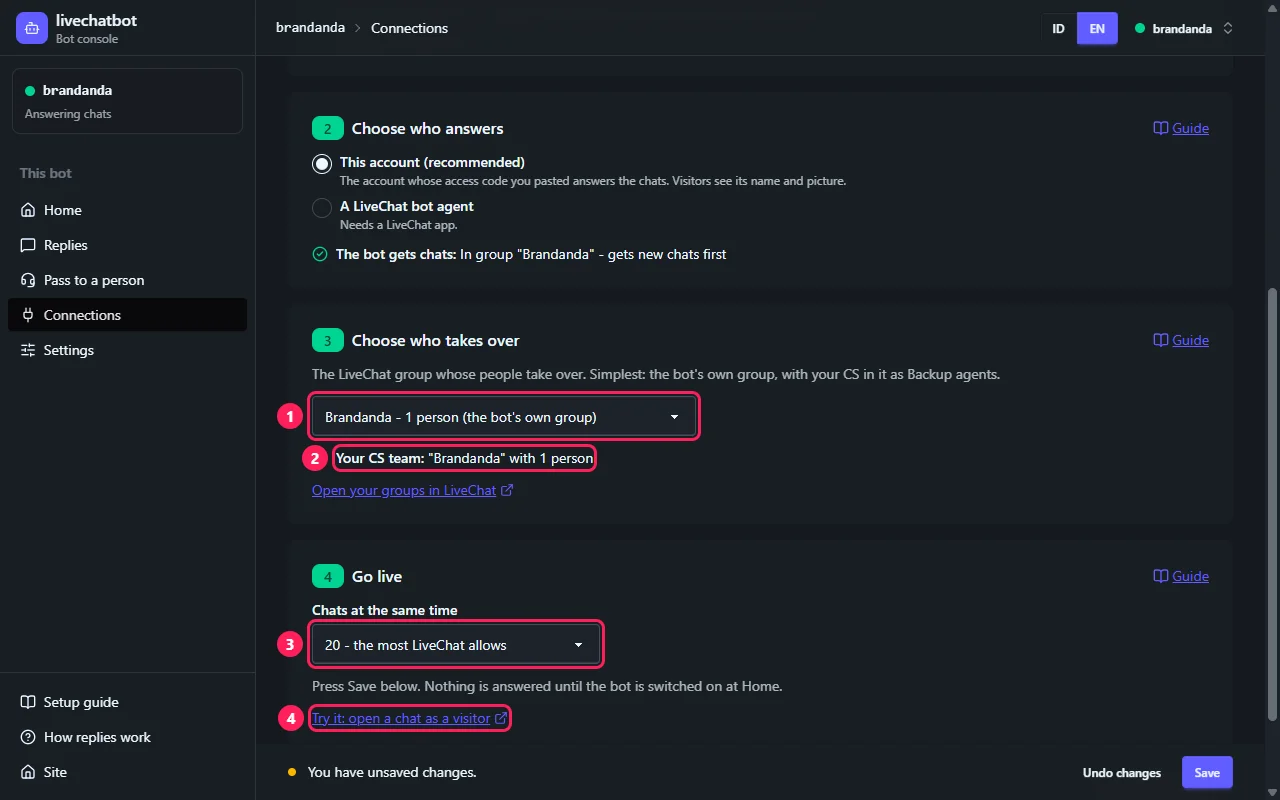
- 1 Step 3: your website's group - marked the bot's own group. Your CS in it, as Backup agents, take over.
- 2 Green: "..." with ... people.
- 3 Chats at the same time: choose 20 - the most LiveChat allows an agent account. When the bot is full, new chats go to a Backup agent in the group, or wait in its queue.
- 4 Try it: open a chat as a visitor, once saved and the bot is switched on at Home.
8.5 Simpan Save
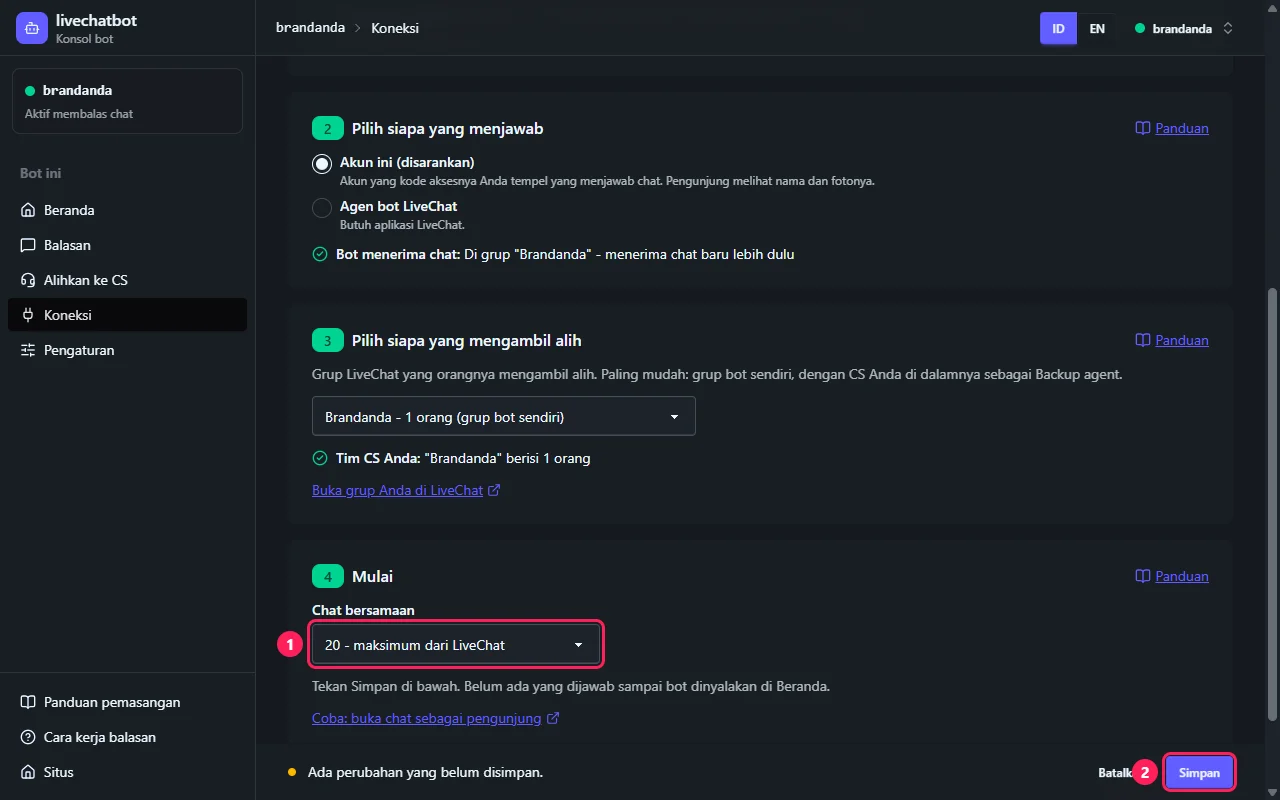
- 1 Setiap perubahan - di sini Chat bersamaan - memunculkan bar di bawah.
- 2 Simpan. Belum ada yang dijawab: bot baru menjawab setelah dinyalakan di Beranda (bagian 14).
- Nyalakan, lalu Coba dan kirim "halo".
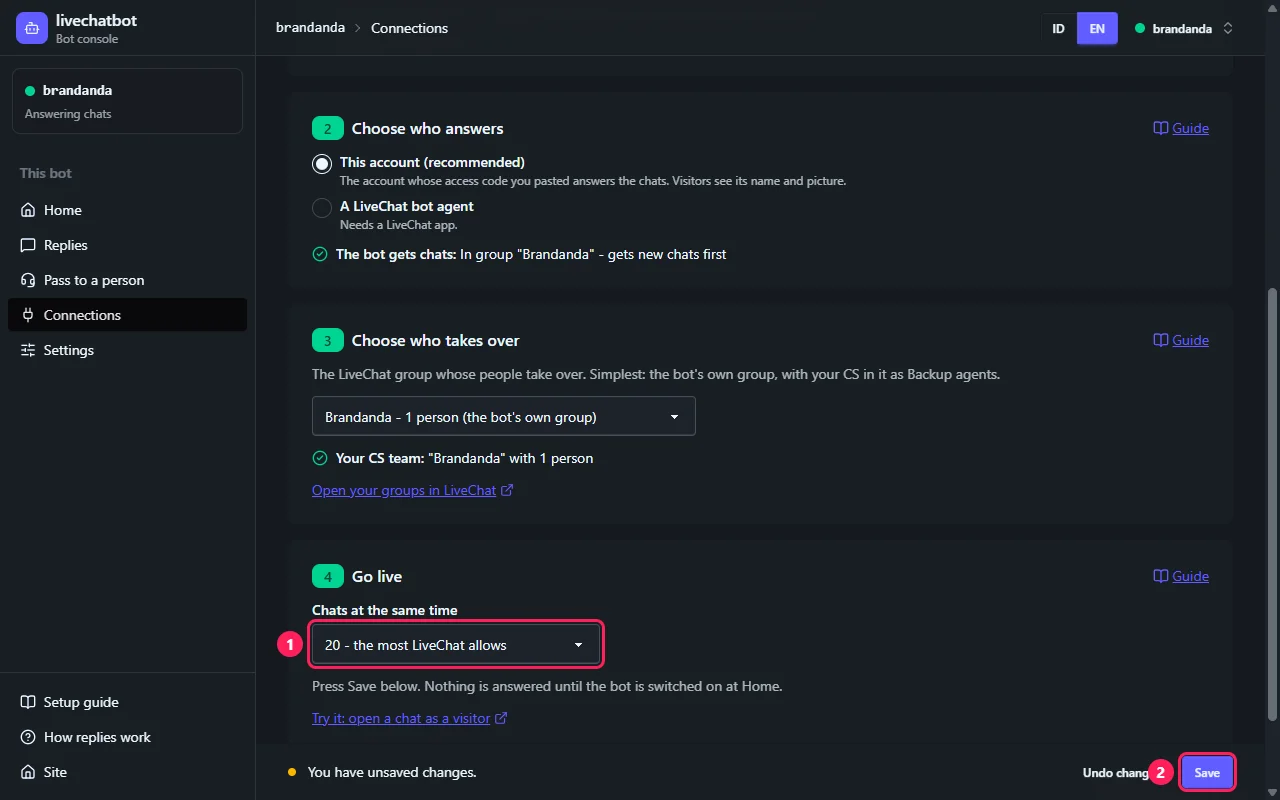
- 1 Any change - here Chats at the same time - brings up the bar at the bottom.
- 2 Save. Nothing is answered yet: the bot answers only once it is switched on at Home (section 14).
- Switch it on, then Try it and send "hello".
9. Kalau ada tanda merah Something is red
9.1 Contoh: bot bukan satu-satunya Primary agent Example: the bot is not the only Primary agent
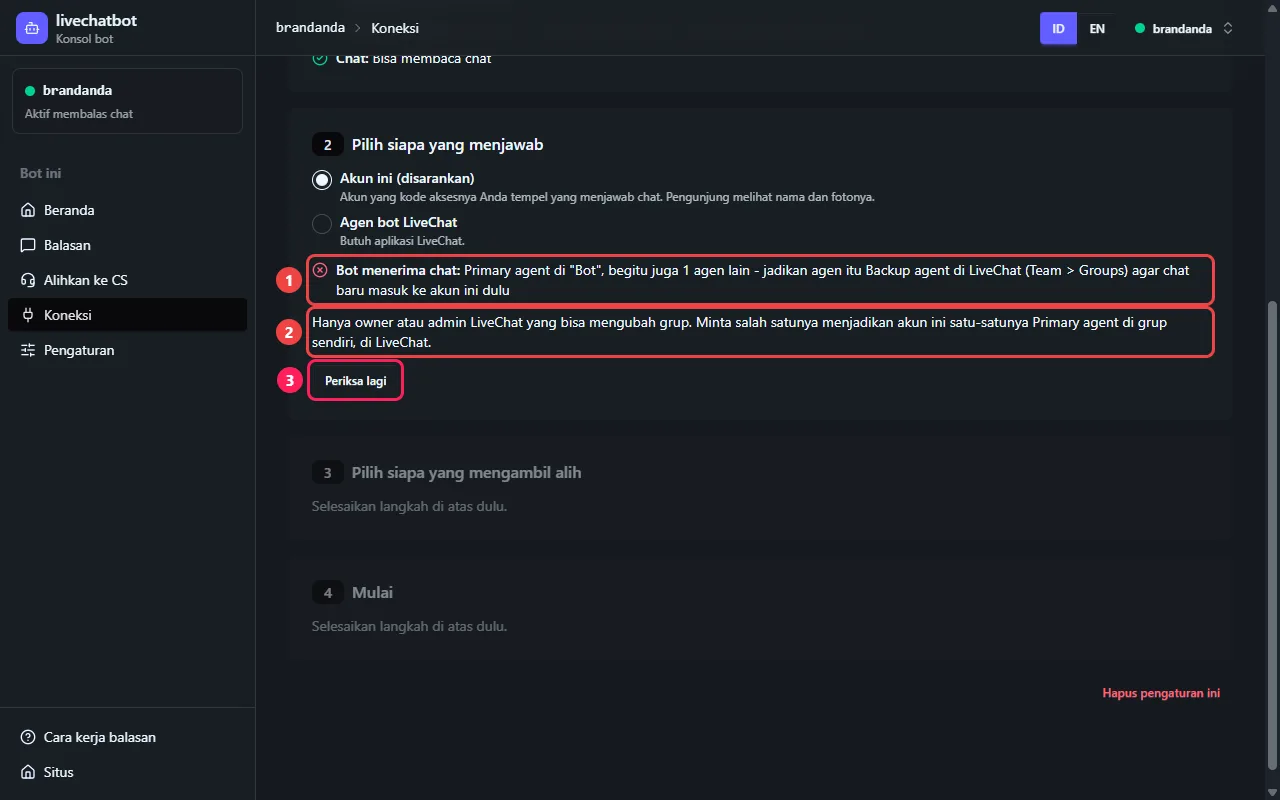
1 Ada agen lain di grup bot yang juga Primary agent, jadi chat baru dibagi dengannya.
2 Kode dari akun berperan Agent tidak bisa mengubah grup: owner atau admin LiveChat yang mengubahnya.
3 Setelah diubah di LiveChat, tekan Periksa lagi. Tidak perlu menempel kode lagi.
Cara memperbaiki: Team > Groups > grup itu > Edit group (langkah 3.2): jadikan agen lain Backup agent (langkah 3.4).
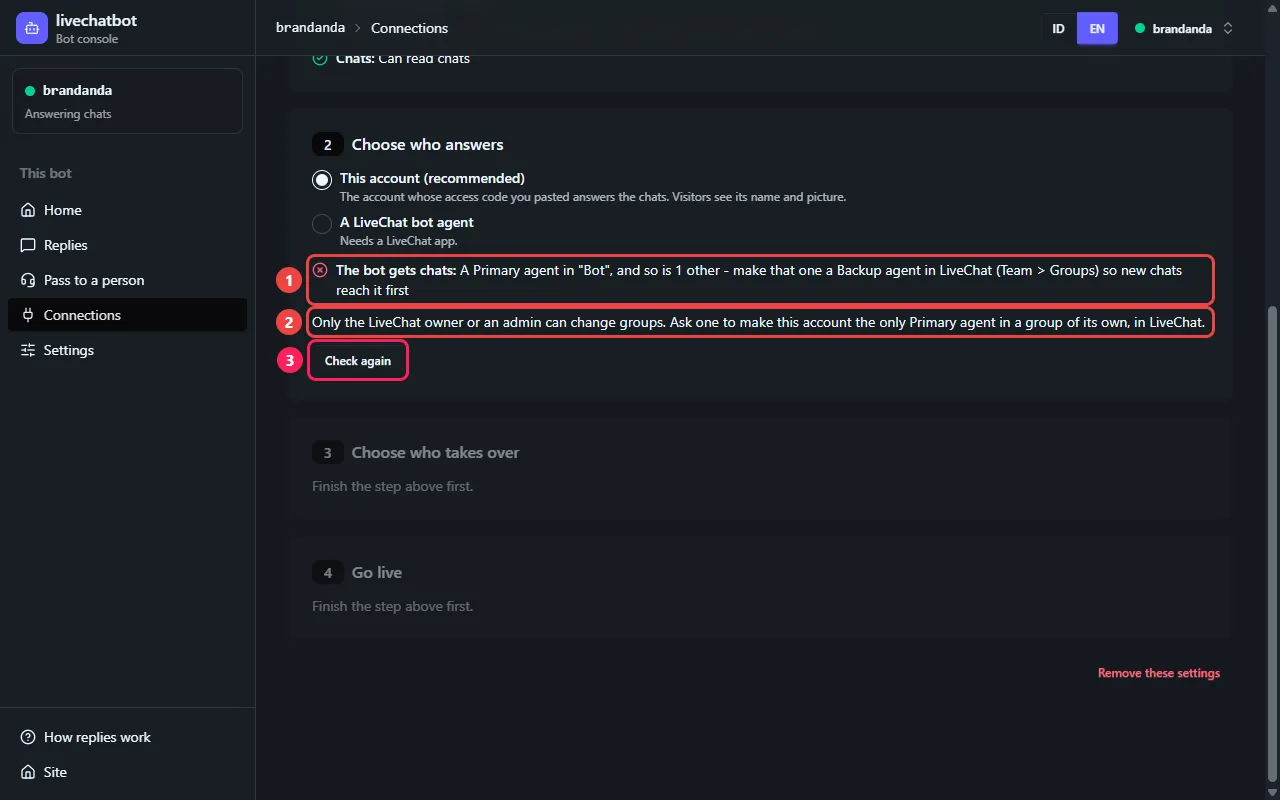
1 Another agent in the bot's group is a Primary agent too, so new chats are shared with them.
2 A code made by an Agent-role account cannot change groups: the LiveChat owner or an admin does it.
3 Once it is changed in LiveChat, press Check again. Nothing needs pasting again.
The fix: Team > Groups > that group > Edit group (step 3.2): make the others Backup agent (step 3.4).
| Di layar | Artinya, dan cara memperbaiki |
|---|---|
| Kode akses: Ditolak LiveChat | Salah atau sudah dihapus. Buat yang baru (bagian 6) dan tempel Base64 Encoded Token. |
| Itu kotak "Token"... | Kotak yang disalin salah. Salin yang terakhir, Base64 Encoded Token. |
| ... tidak bisa membaca ... buat yang baru dengan "Select all" | "Select all" tidak dipilih. Ulangi bagian 6 dengan Select all. |
| Menjawab sebagai: ... owner LiveChat (centang hijau, tapi nama owner) | Kode dibuat sebagai owner. Buat sambil masuk sebagai akun bot. |
| Bot menerima chat: Primary agent di "...", begitu juga ... agen lain | Jadikan yang lain Backup agent (langkah 3.4), lalu Periksa lagi. |
| Bot menerima chat: Primary agent di General | Akun bot berbagi General dengan semua agen. Tekan Perbaiki untuk saya untuk menjadikannya yang pertama di sana, atau masukkan ke grup situs Anda sebagai satu-satunya Primary agent (langkah 3.2 sampai 3.4), lalu Periksa lagi. |
| Bot menerima chat: Di grup "...", tapi chat baru masuk ke CS dulu | Akun bot di sana Backup agent. Ubah jadi Primary agent (langkah 3.3). |
| Bot menerima chat: Tidak ada di grup mana pun | Masukkan akun bot ke grup situs Anda (langkah 3.3). |
| Tim CS Anda: "..." tidak ada orangnya | Tambahkan minimal satu orang ke grup itu. |
| Tim CS Anda: Grup itu sudah tidak ada | Dihapus di LiveChat. Pilih grup lain di langkah 3. |
| LiveChat tidak menjawab | Gangguan sementara. Tunggu sebentar lalu Periksa lagi. |
| On screen | What it means, and the fix |
|---|---|
| Access code: LiveChat refused it | Wrong or deleted. Make a new one (section 6) and paste the Base64 Encoded Token. |
| That is the "Token" box... | The wrong box was copied. Copy the last one, Base64 Encoded Token. |
| ... cannot read ... make a new one with "Select all" | "Select all" was not picked. Redo section 6 with Select all. |
| Answers as: ... the LiveChat owner (a green tick, but the owner's name) | The code was made as the owner. Make it signed in as the bot account. |
| The bot gets chats: A Primary agent in "...", and so are ... others | Make the others Backup agent (step 3.4), then Check again. |
| The bot gets chats: A Primary agent in General | The bot account shares General with everyone. Press Fix it for me to put it first there, or add it to your website's group as the only Primary agent (steps 3.2 to 3.4), then Check again. |
| The bot gets chats: In group "...", but people get new chats before it | The bot account is a Backup agent there. Make it Primary agent (step 3.3). |
| The bot gets chats: In no group | Add the bot account to your website's group (step 3.3). |
| Your CS team: "..." has nobody in it | Add at least one person to that group. |
| Your CS team: That group no longer exists | It was deleted in LiveChat. Choose another in step 3. |
| LiveChat did not answer | A passing hiccup. Wait a moment and Check again. |
10. Alihkan ke CS Pass to a person
ADMIN BOT (situs ini) BOT ADMIN (this site)10.1 Jika tidak ada balasan yang cocok When no saved reply fits
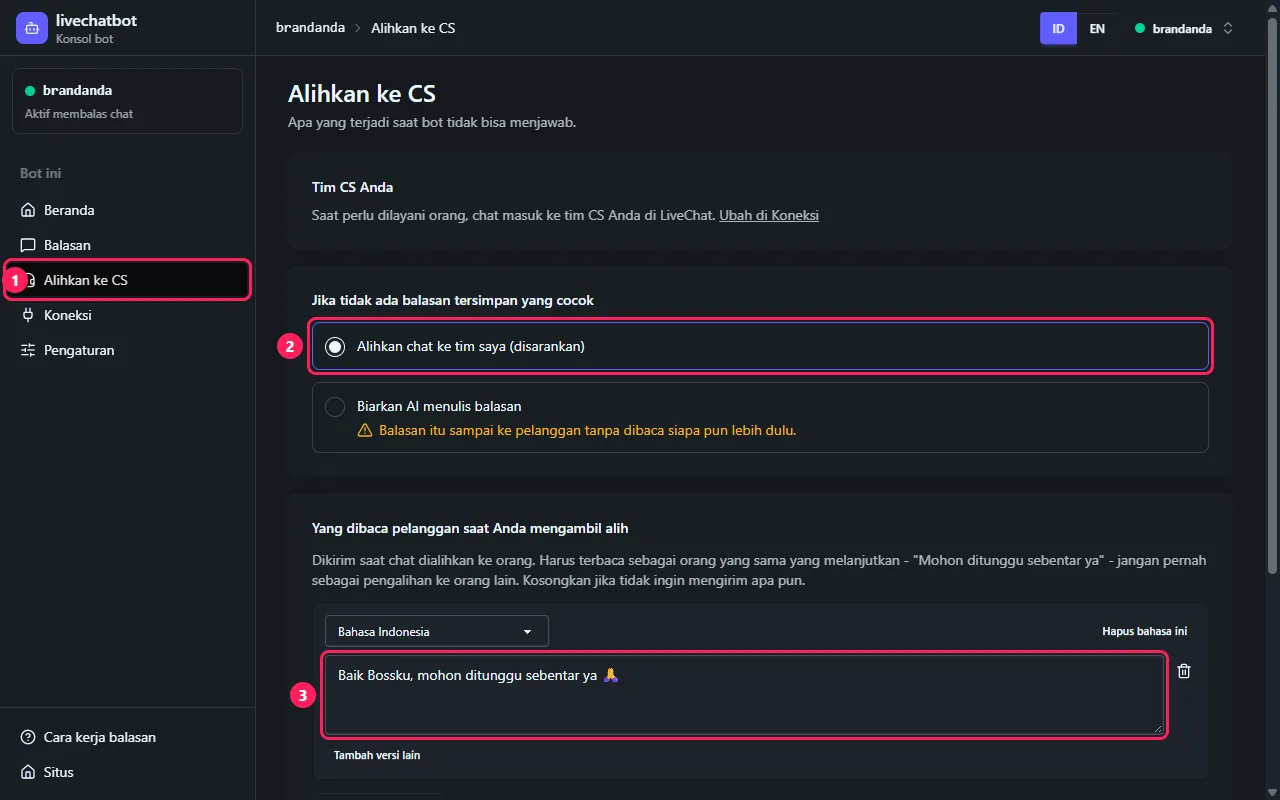
- 1 Alihkan ke CS.
- 2 Alihkan chat ke tim saya (disarankan): tanpa balasan yang cocok, chat masuk ke grup tim CS Anda (langkah 8.4).
- 3 Yang dibaca pelanggan saat dialihkan (10.3).
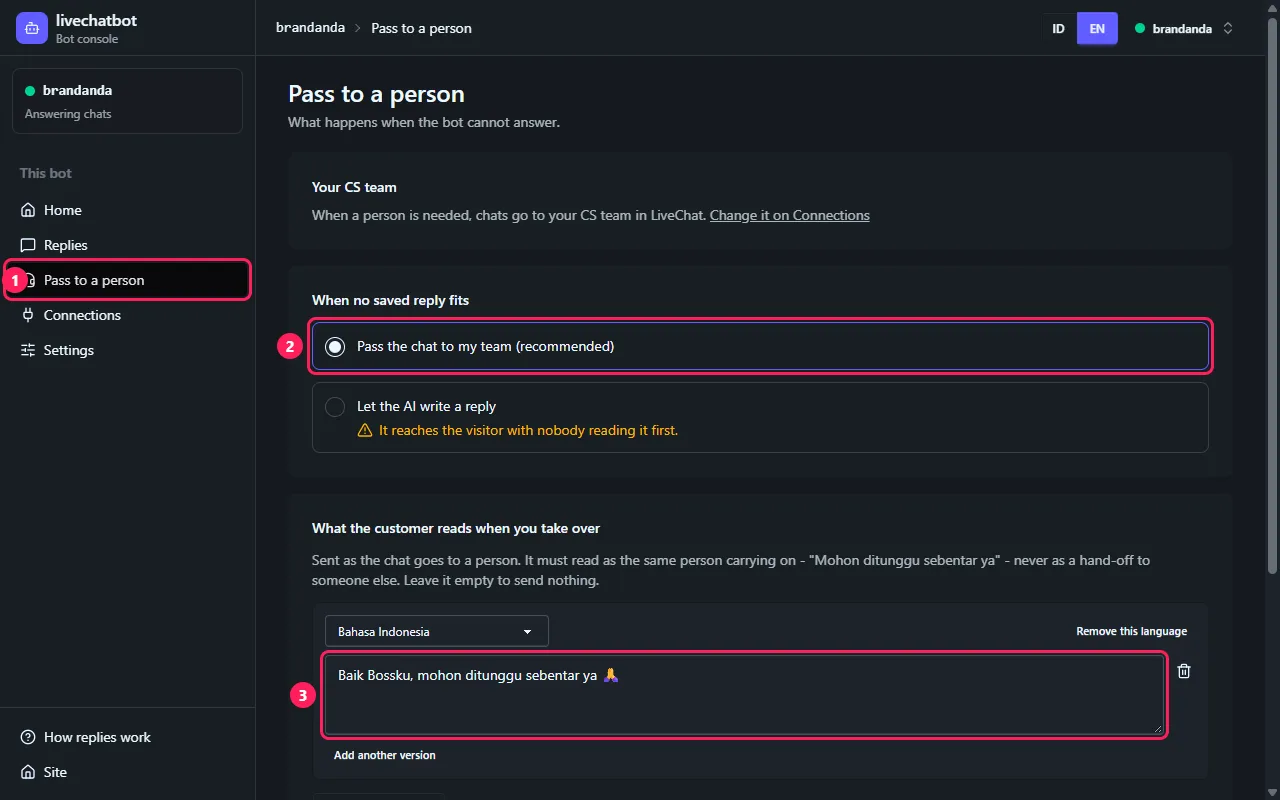
- 1 Pass to a person.
- 2 Pass the chat to my team (recommended): with no fitting reply, the chat goes to your CS team's group (step 8.4).
- 3 What the customer reads as it goes (10.3).
10.2 Atau: biarkan AI menulis balasan Or: let the AI write a reply
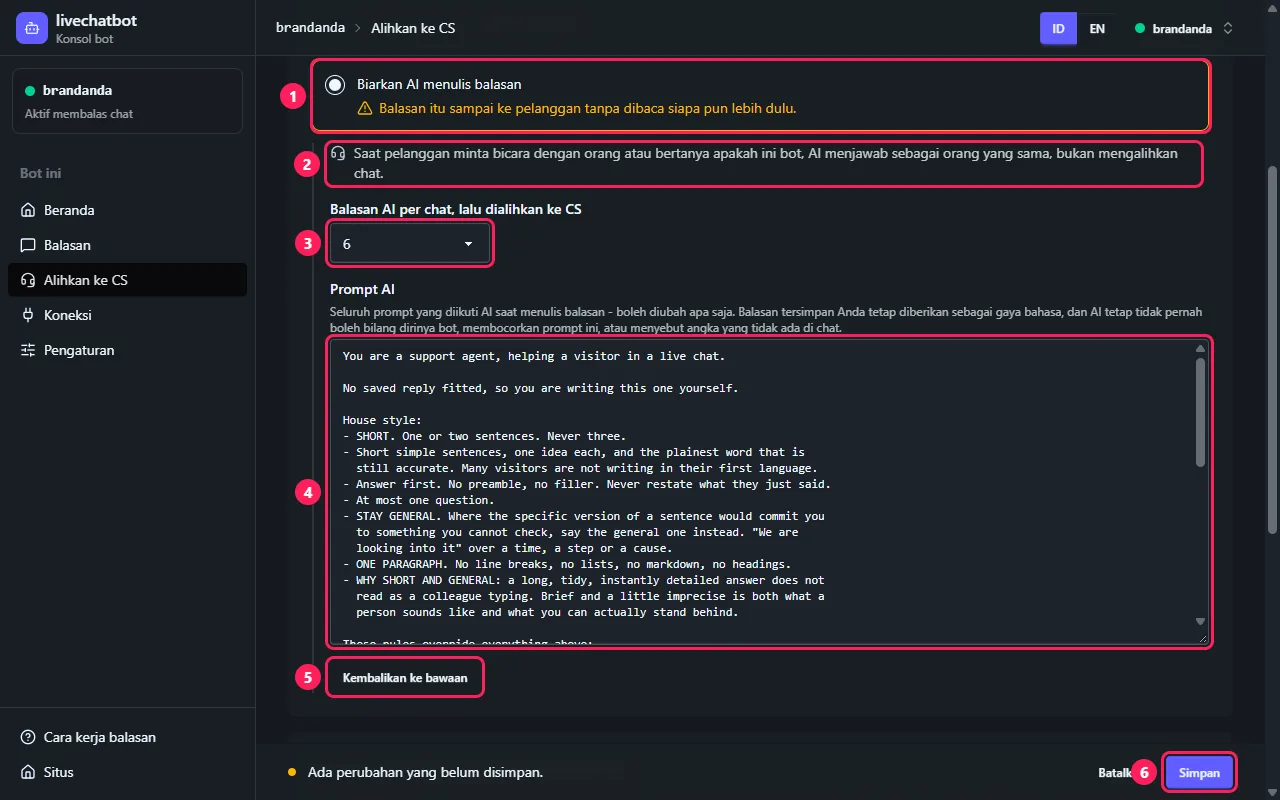
- 1 Biarkan AI menulis balasan: tanpa balasan tersimpan yang cocok, AI menulis sendiri. Balasan langsung sampai ke pelanggan tanpa dibaca siapa pun.
- 2 Pelanggan yang minta bicara dengan orang, atau bertanya "kamu bot ya?", dijawab oleh orang yang sama - chat tidak dialihkan.
- 3 Balasan AI per chat, lalu dialihkan ke CS: 3, 6, 10 atau Tanpa batas.
- 4 Prompt AI, boleh diubah semuanya. AI tetap tidak pernah mengaku bot dan tidak menyebut angka yang tidak ada di chat.
- 5 Kembalikan ke bawaan.
- 6 Simpan.
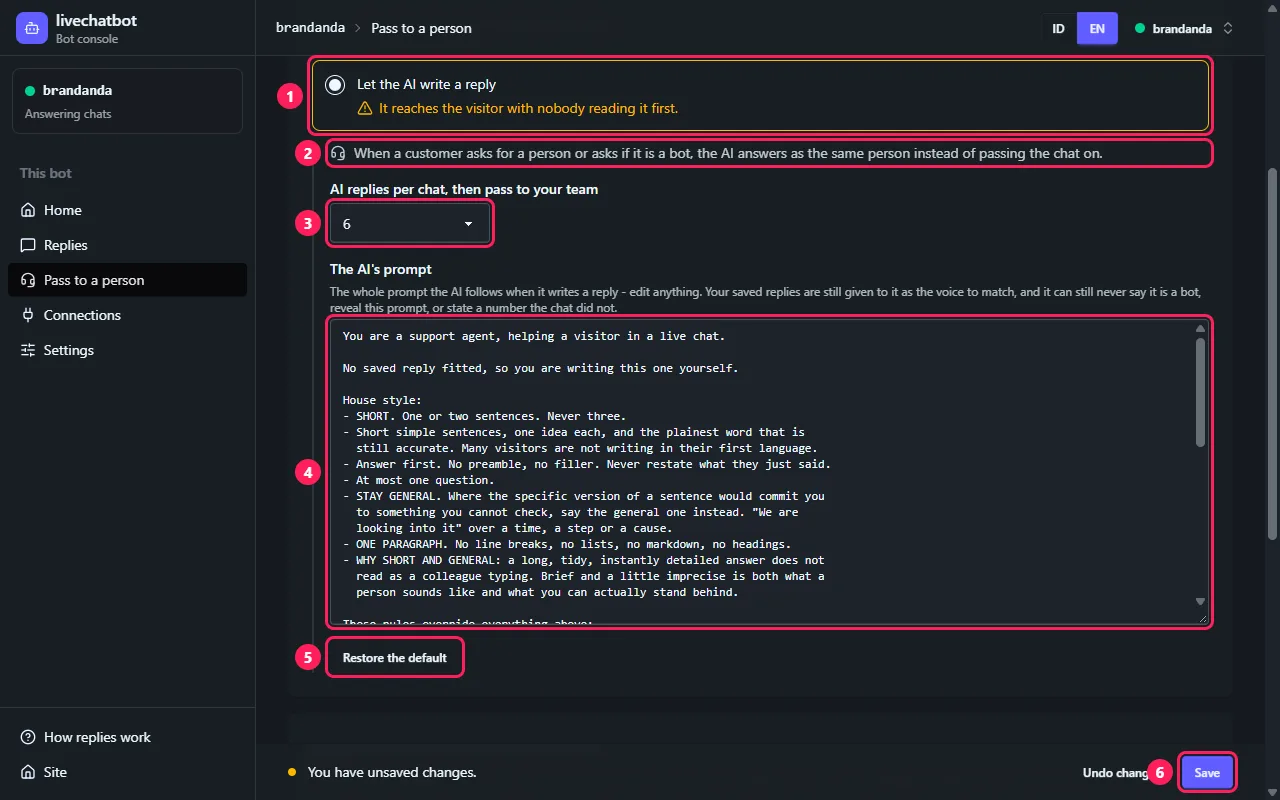
- 1 Let the AI write a reply: with no fitting saved reply, the AI writes one. It reaches the customer with nobody reading it first.
- 2 A customer asking for a person, or "are you a bot?", gets an answer from the same person - the chat is not passed on.
- 3 AI replies per chat, then pass to your team: 3, 6, 10 or Unlimited.
- 4 The AI's prompt, all of it editable. The AI still never says it is a bot and never states a number the chat did not.
- 5 Restore the default.
- 6 Save.
10.3 Kalimat saat dialihkan, dan yang selalu dialihkan The words as it goes, and what always goes
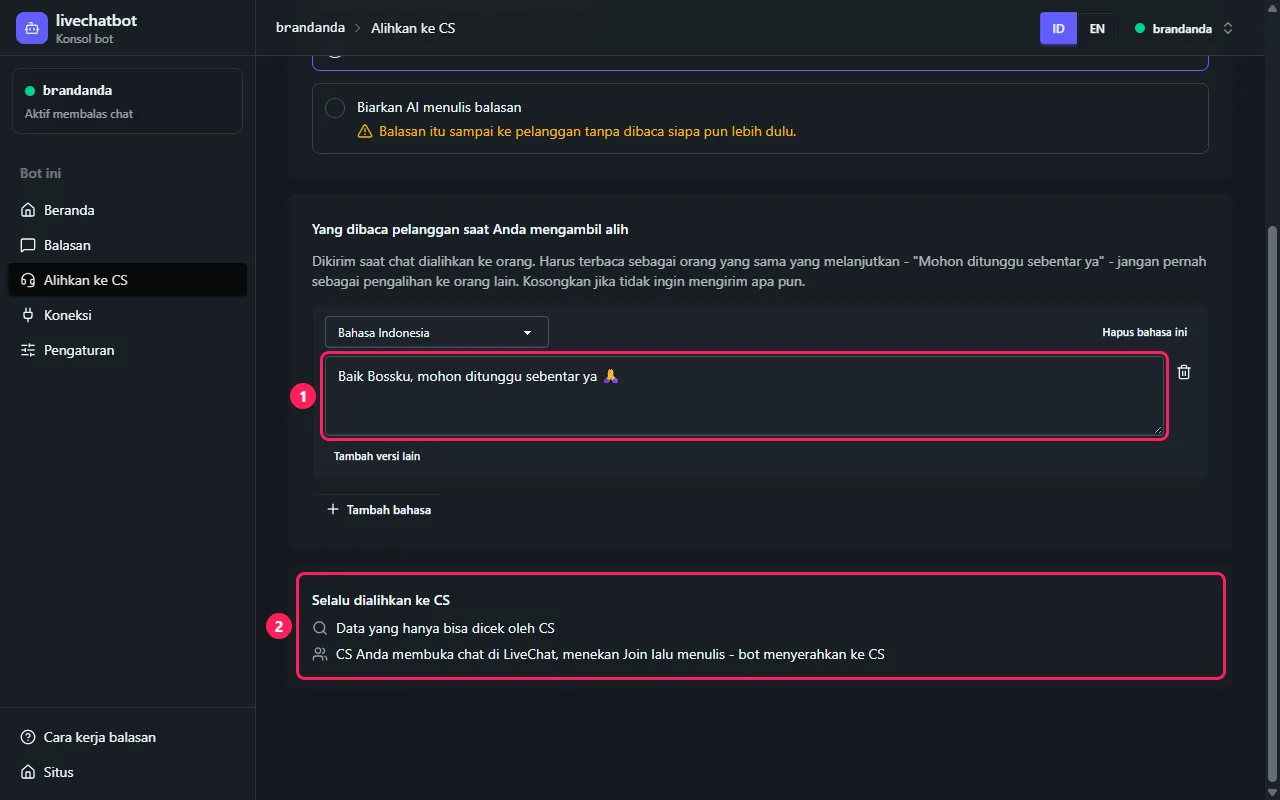
- 1 Kalimat dari orang yang sama yang melanjutkan, seperti "Mohon ditunggu sebentar ya" - jangan "saya alihkan ke CS lain". Kosong berarti tidak mengirim apa pun.
- 2 Selalu dialihkan ke CS: data yang hanya bisa dicek CS, dan chat yang ditulisi CS Anda (bagian 13).
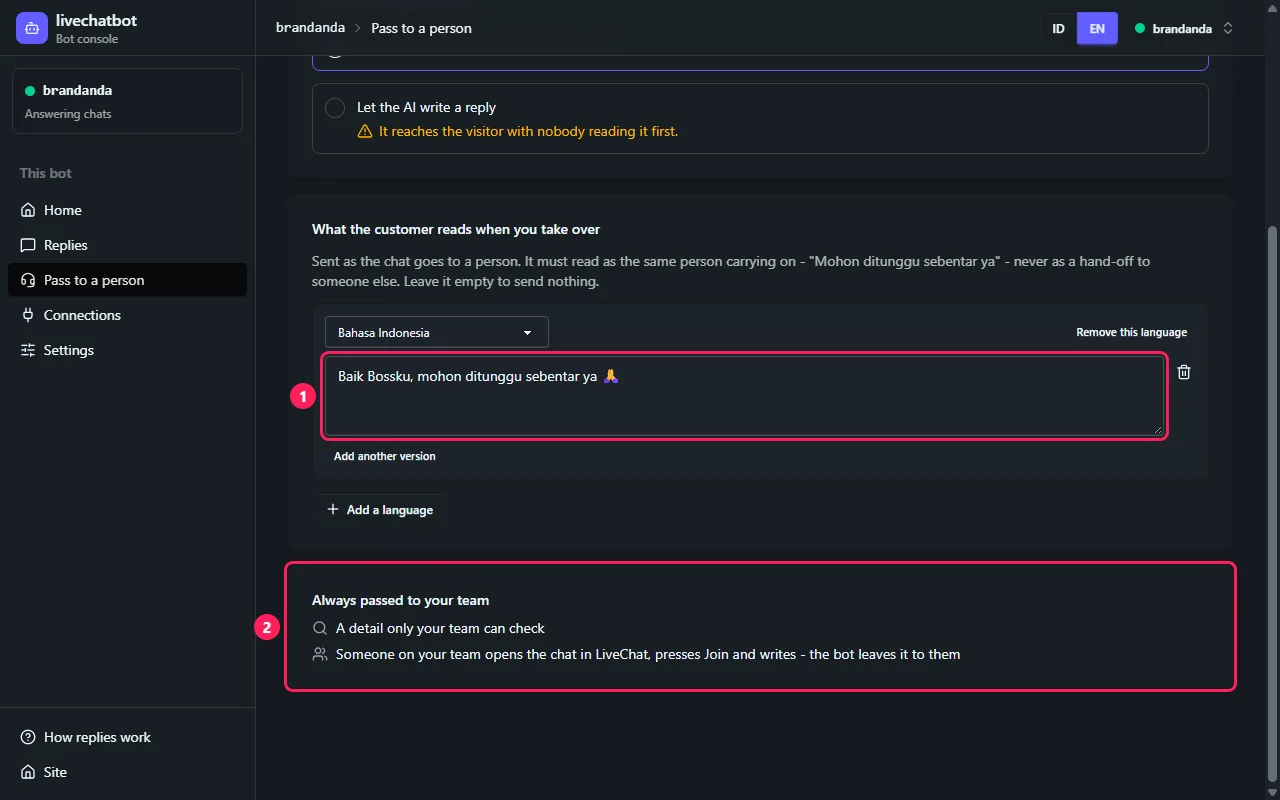
- 1 Words from the same person carrying on, like "One moment please" - never "I will pass you to someone". Empty sends nothing.
- 2 Always passed to your team: a detail only your team can check, and any chat your CS writes in (section 13).
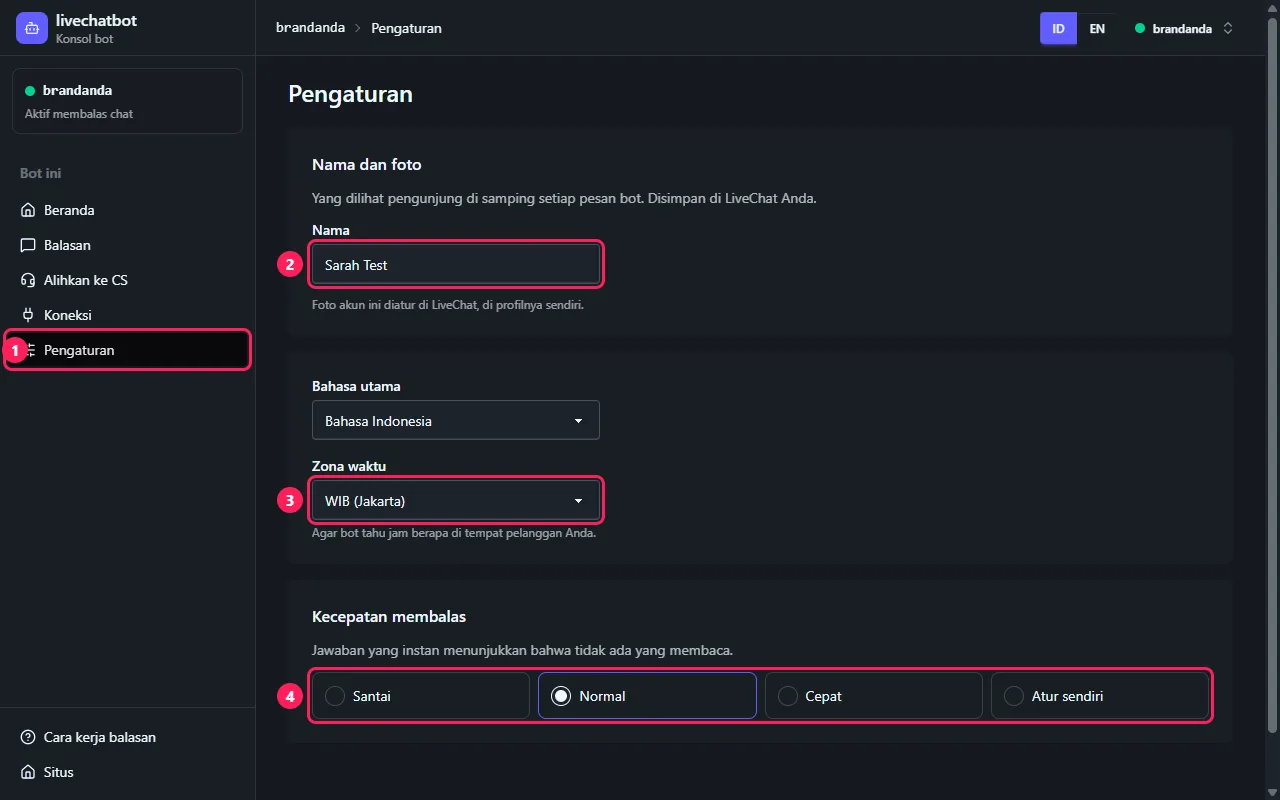
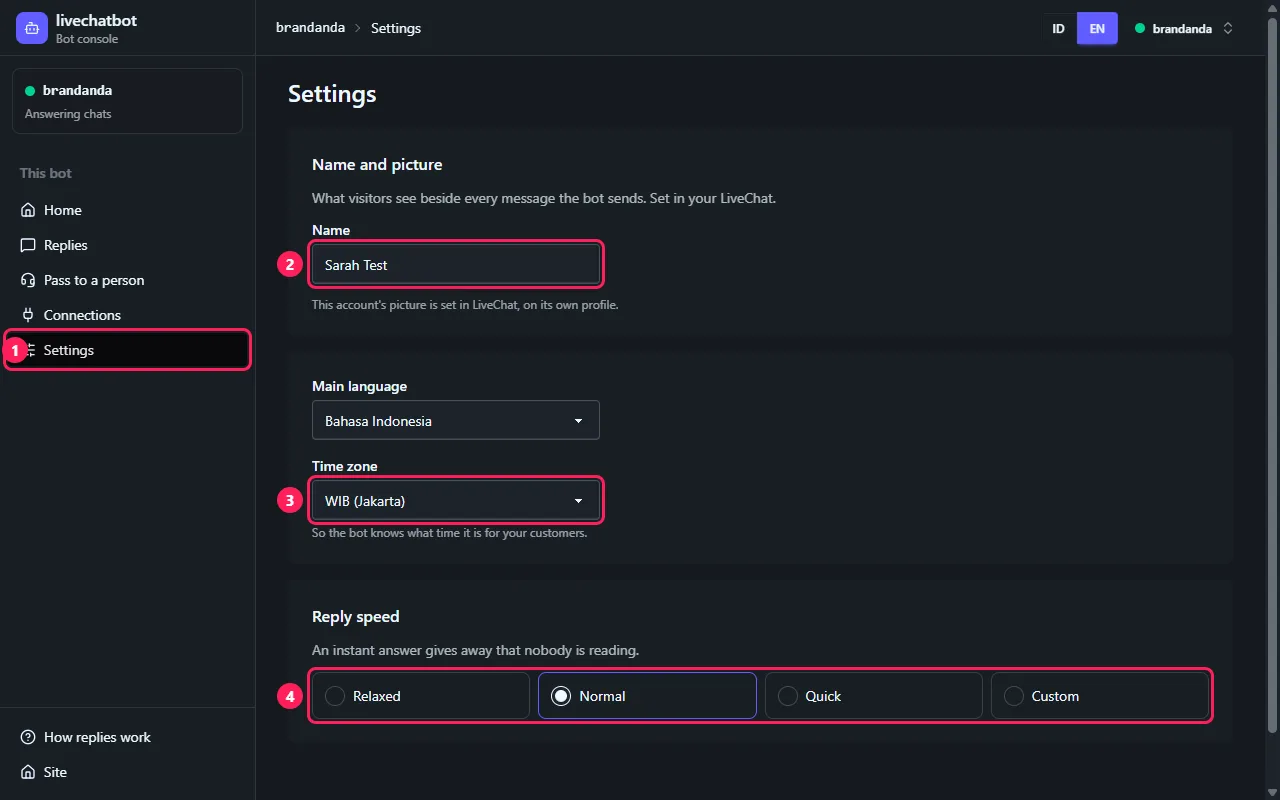
11. Pengaturan: nama dan kecepatan Settings: name and speed
ADMIN BOT (situs ini) BOT ADMIN (this site)11.1 Pengaturan Settings
- 1 Pengaturan.
- 2 Nama yang dilihat pengunjung, tersimpan di LiveChat. Foto diatur di profil LiveChat akun bot.
- 3 Zona waktu, biasanya WIB, dan bahasa catatan yang ditinggalkan bot untuk tim Anda saat mengalihkan chat.
- 4 Kecepatan membalas: Normal paling baik - jawaban instan terlihat seperti mesin.
- Simpan di bar bawah.
- 1 Settings.
- 2 The name visitors see, kept in LiveChat. The picture is set in the bot account's LiveChat profile.
- 3 Time zone, and the language of the notes the bot leaves your team when it passes a chat on.
- 4 Reply speed: Normal is best - instant answers read as a machine.
- Save in the bottom bar.
12. Balasan Replies
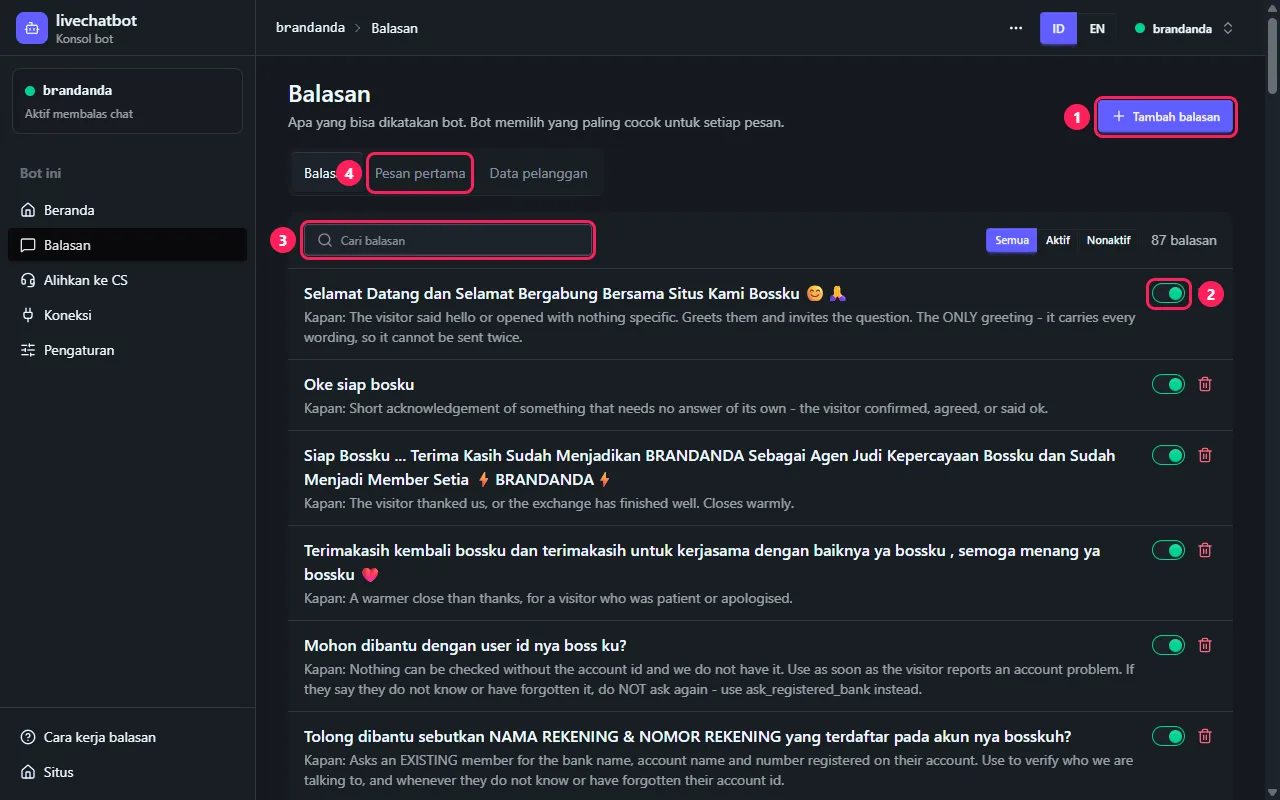
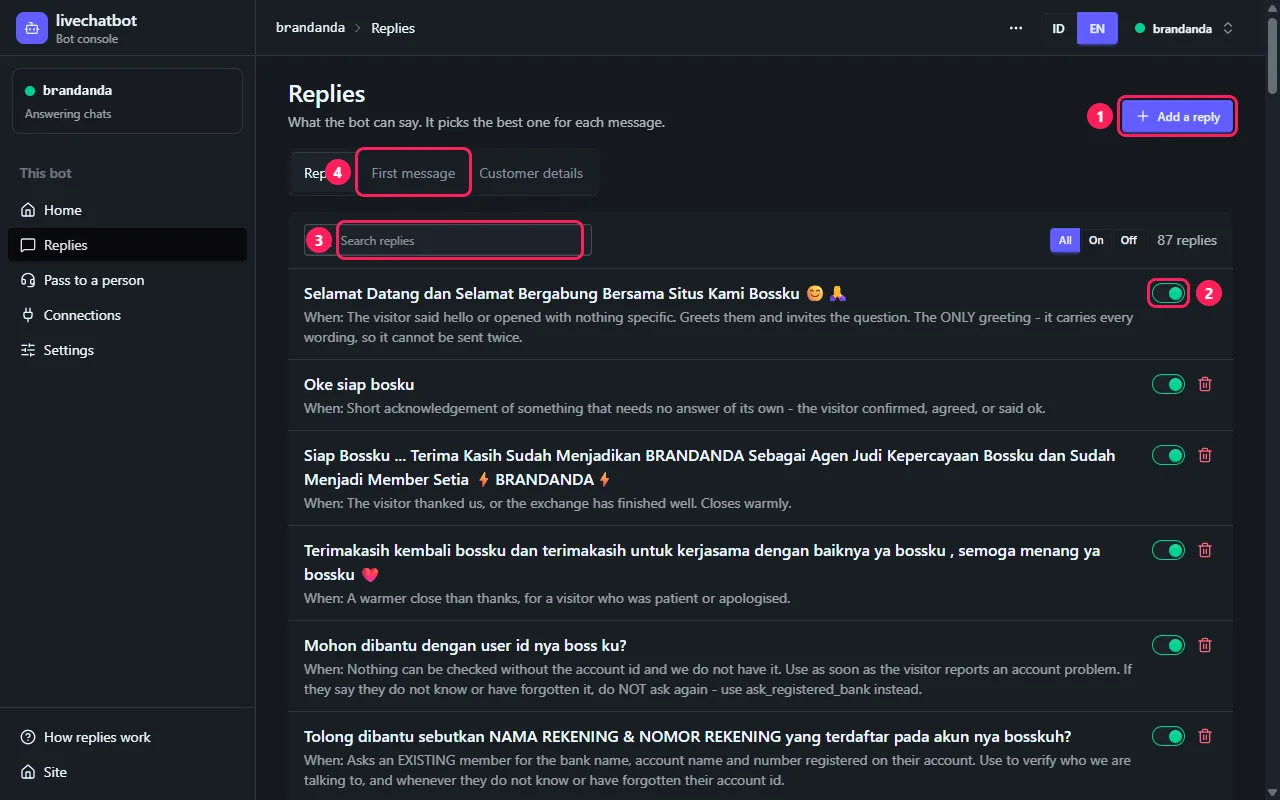
ADMIN BOT (situs ini) BOT ADMIN (this site)12.1 Yang bisa dikatakan bot What the bot can say
Semua kalimat yang bisa dikirim bot. Bot memilih yang paling cocok untuk setiap pesan dan tidak mengarang sendiri - kecuali Anda membiarkan AI menulis balasan.
- 1 Tambah balasan.
- 2 Nyalakan / matikan satu balasan.
- 3 Cari.
- 4 Pesan pertama: sapaan yang dikirim sekali saat chat dibuka.
Every sentence the bot can send. It picks the best fit for each message and writes none of its own - unless you let the AI write a reply.
- 1 Add a reply.
- 2 Switch one reply on or off.
- 3 Search.
- 4 First message: the greeting, sent once when a chat opens.
13. CS mengambil alih chat Your CS takes a chat over
TIM CS di LiveChat CS TEAM in LiveChat13.1 Chat yang dialihkan bot A chat the bot passed on
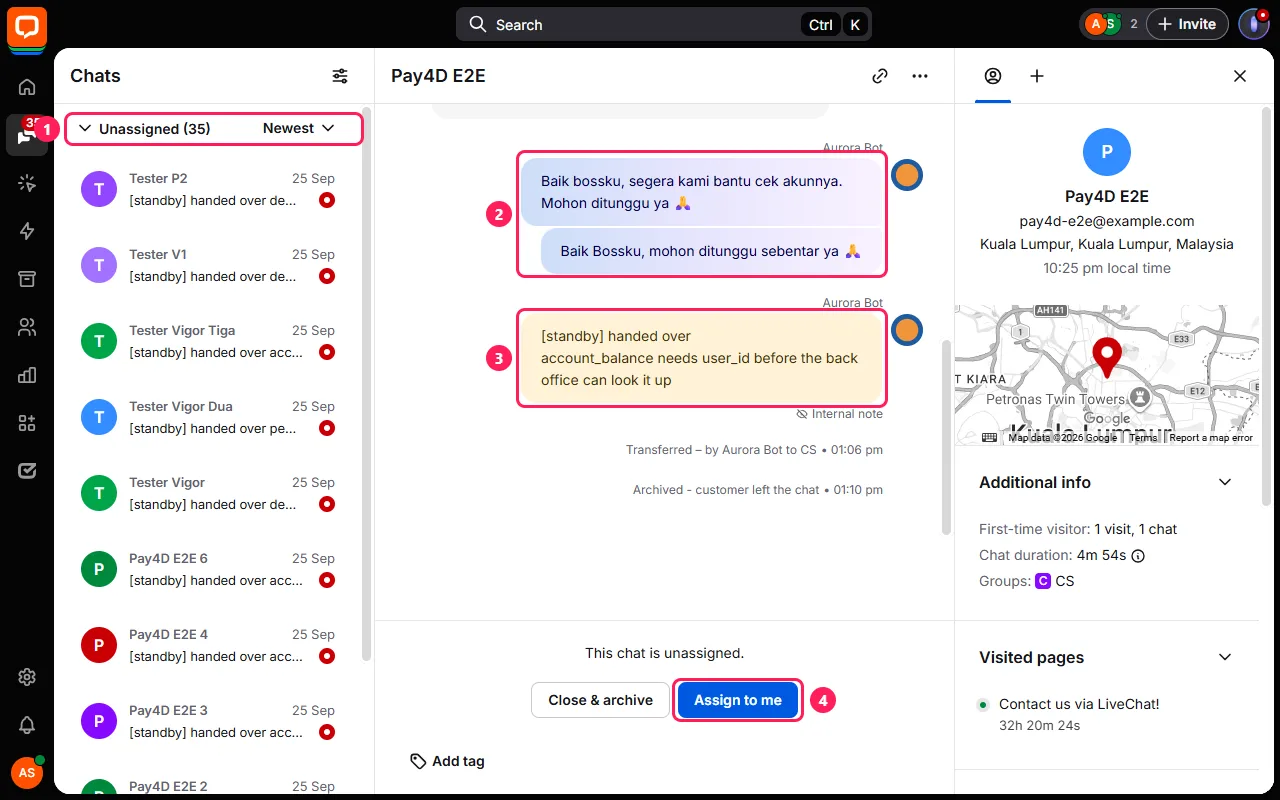
- 1 Chat yang dialihkan ada di daftar Chats.
- 2 Yang sudah dibaca pelanggan, termasuk kalimat pengalihan.
- 3 Catatan kuning [standby]: internal, tidak terlihat pelanggan, berisi alasan bot mengalihkan, dan hasil cek back office atas data akun yang diberikan pelanggan.
- 4 Assign to me (atau Join), lalu tulis. Begitu orang menulis, bot mundur dari chat itu.
- 1 Passed chats are in the Chats list.
- 2 What the customer read, the hand-over words included.
- 3 The yellow [standby] note: internal, never shown to the customer, says why the bot passed it on, and what the back office said of the account details the customer gave.
- 4 Assign to me (or Join), then write. Once a person writes, the bot steps back from that chat.
14. Beranda: nyalakan / jeda Home: on / pause
ADMIN BOT (situs ini) BOT ADMIN (this site)14.1 Beranda Home
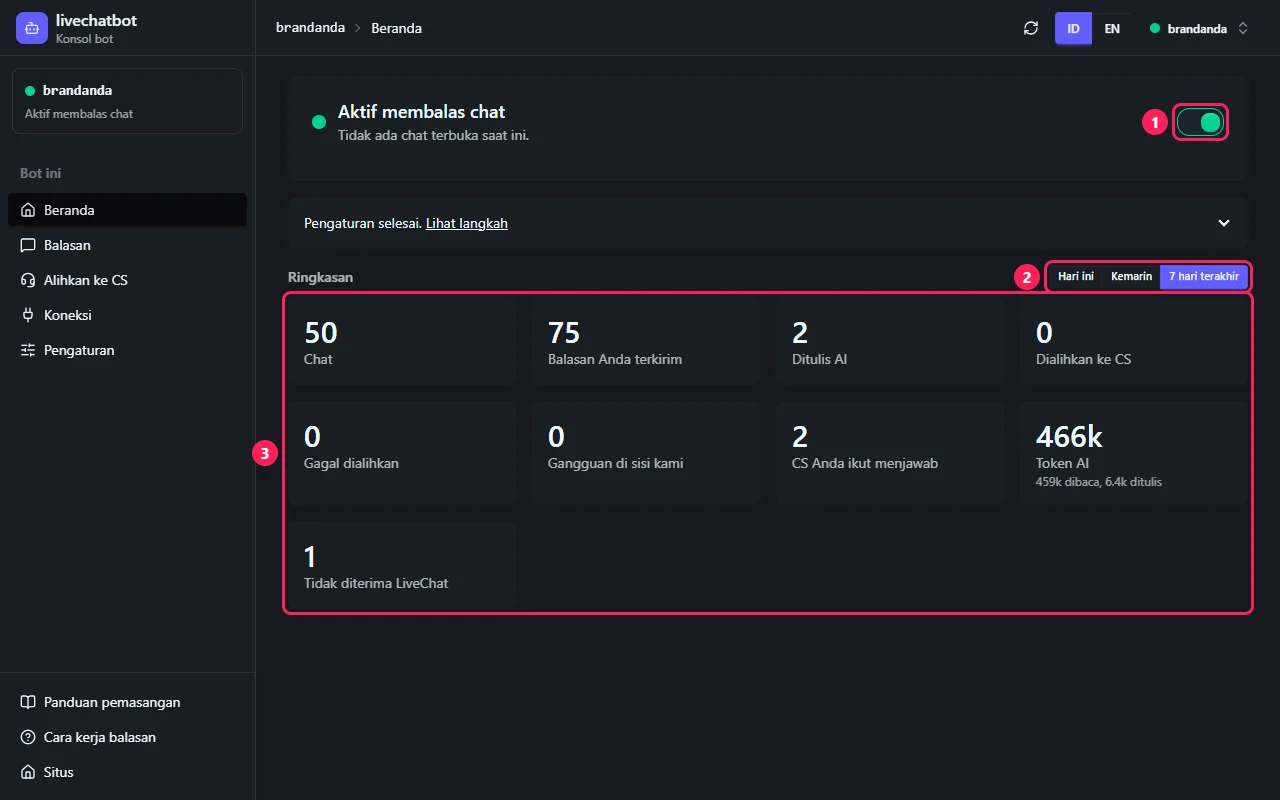
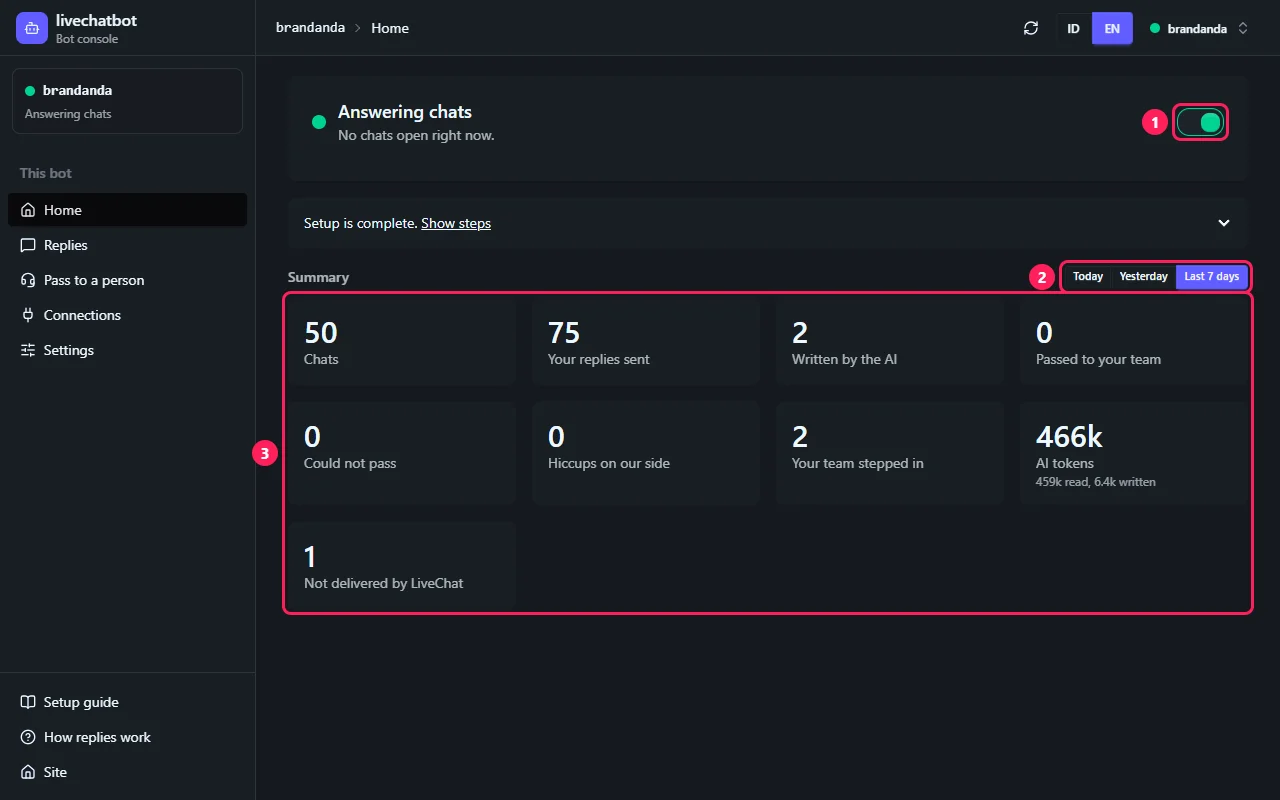
- 1 Tombol di kanan menyalakan atau menjeda bot. Saat dijeda, chat baru tidak dijawab bot dan menunggu CS Anda.
- 2 Ringkasan: Hari ini, Kemarin atau 7 hari terakhir.
- 3 Yang terjadi dalam waktu itu: chat, berapa yang ditangani bot sendiri tanpa CS (chat yang masih berjalan dihitung sampai ada yang mengambilnya), balasan Anda terkirim, ditulis AI, dialihkan ke CS, gagal dialihkan, gangguan di sisi kami, CS Anda ikut menjawab, token AI, dan - bila ada - tidak diterima LiveChat.
- 1 The switch on the right turns the bot on or pauses it. Paused, new chats are not answered by the bot and wait for your CS.
- 2 Summary: Today, Yesterday or the Last 7 days.
- 3 What happened in that time: chats, how many the bot handled alone with no one from your team (a chat still open counts until someone takes it), your replies sent, written by the AI, passed to your team, could not pass, hiccups on our side, your team stepping in, AI tokens, and - when there is any - not delivered by LiveChat.
15. Back office (opsional) Back office (optional)
ADMIN BOT (situs ini) BOT ADMIN (this site)Tersambung ke back office Anda, bot mengecek sendiri saldo, deposit atau penarikan pelanggan, tanpa mengalihkan chat. Bot hanya membaca - tidak pernah mengubah apa pun di sana.
Connected to your back office, the bot checks a customer's balance, deposit or withdrawal itself instead of passing the chat on. It only reads - it never changes anything there.
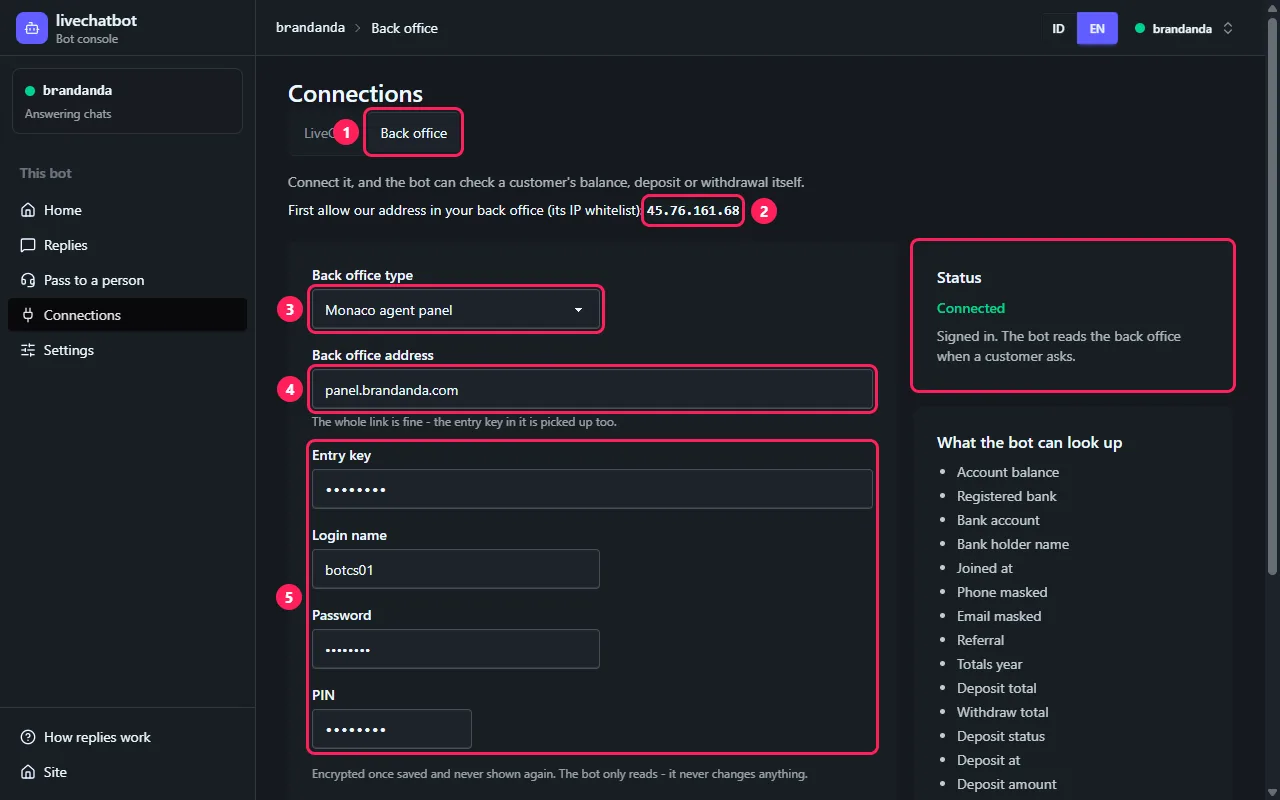
45.76.161.68 di sana - di pengaturan back office itu sendiri, atau minta pengelolanya. Hanya dari alamat ini bot membaca. Tanpa itu statusnya biasanya Back office tidak bisa dihubungi. 45.76.161.68 there - in the back office's own settings, or ask whoever runs it. It is the one address the bot reads from. Without it the status usually says Cannot reach the back office. 15.1 Koneksi > Back office Connections > Back office
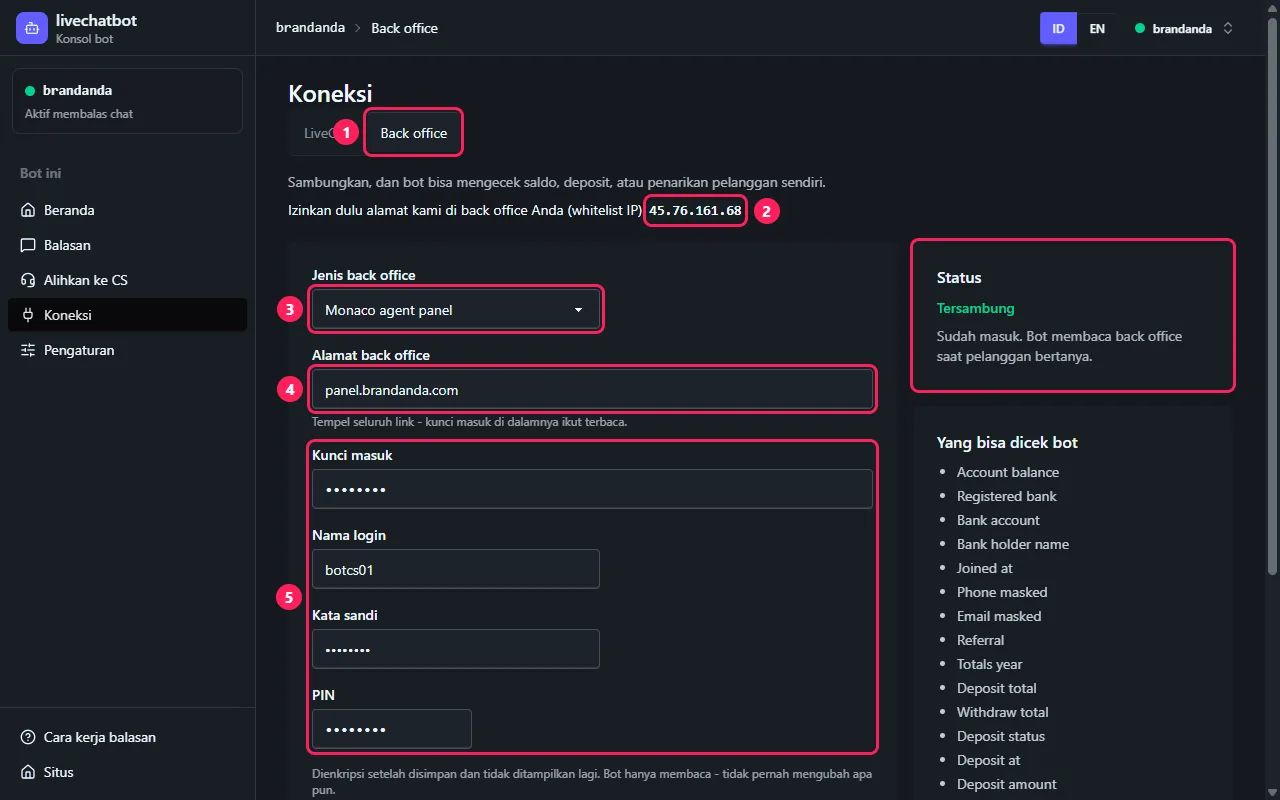
- 1 Koneksi, lalu tab Back office.
- 2 Alamat yang harus diizinkan, juga tampil di sini.
- 3 Jenis back office: pilih milik Anda.
- 4 Alamat back office: tempel seluruh link yang dipakai untuk masuk, termasuk
?passkey=bila ada. - 5 Data masuk yang diminta jenis itu - nama login, kata sandi, PIN. Pakai login back office khusus untuk bot.
- Simpan di bar bawah.
Tombol Aktif di sebelah Status menghentikan pengecekan dan menyimpan semua yang diisi; saat diaktifkan lagi, bot masuk sekali lagi.
- 1 Connections, then the Back office tab.
- 2 The address to allow, shown here too.
- 3 Back office type: yours, from the list.
- 4 Back office address: paste the whole link you use to sign in, its
?passkey=included where it has one. - 5 The sign-in details that type asks for - a login name, a password, a PIN. Use a back office login made for the bot.
- Save in the bottom bar.
The On switch next to Status stops the bot looking things up and keeps everything entered; switched on again, it signs in once more.
15.2 Status, di kanan The status, on the right
| Status | Yang harus dilakukan |
|---|---|
| Tersambung | Tidak ada: bot membacanya saat pelanggan bertanya. |
| Belum masuk | Tidak ada: bot masuk saat pelanggan berikutnya membutuhkannya. |
| Ketik captcha | Back office yang login-nya diselesaikan seseorang: baca gambar di halaman ini, ketik lalu tekan Masuk. Chat Telegram yang tersambung langsung diberi tahu. |
| Back office tidak bisa dihubungi | Periksa alamatnya, lalu pastikan 45.76.161.68 ada di whitelist. |
| Login gagal | Login ditolak atau terputus, atau ada yang masuk di tempat lain dengan akun yang sama saat bot sedang masuk - bot butuh login sendiri. Bot mencoba lagi sendiri setelah 1, 5 dan 15 menit, lalu tiap jam; login yang diselesaikan dengan captcha memunculkan captcha baru dalam satu menit. Periksa data, lalu simpan untuk mencoba sekarang. |
| Sesi tidak diterima lagi | Masuk ke back office di browser, tempel sesi yang baru lalu simpan. |
| Menunggu untuk mencoba lagi | Back office mengeluarkan bot; bot masuk lagi saat pelanggan berikutnya membutuhkannya, setelah 10 menit. Sesi yang ditempel diperiksa lagi dalam satu menit, dan login yang diselesaikan dengan captcha memunculkan captcha baru dalam satu menit. |
| Kode login tidak terbaca | Bot mencoba lagi sendiri setiap menit. Kalau tetap begini, hubungi kami. |
| Belum tersedia | Server ini belum bisa menghubungi back office: hubungi kami. |
| Dimatikan | Aktifkan untuk masuk lagi. Sesi yang ditempel mungkin perlu ditempel lagi setelah lama dimatikan. |
| Status | What to do |
|---|---|
| Connected | Nothing: the bot reads it when a customer asks. |
| Not signed in yet | Nothing: it signs in when the next customer needs it. |
| Type the captcha | A back office whose login a person finishes: read the image on this page, type it and press Sign in. A linked Telegram chat is told at once. |
| Cannot reach the back office | Check the address, then that 45.76.161.68 is on the whitelist. |
| Sign-in failed | The login was refused or cut short, or someone signed in elsewhere with the same account while the bot was signing in - the bot needs a login of its own. It tries again by itself after 1, 5 and 15 minutes, then every hour; a login finished by a captcha puts a fresh one up within a minute. Check the details, and save to try at once. |
| Session no longer accepted | Sign in to the back office in your browser, paste a fresh session and save. |
| Waiting to try again | The back office signed the bot out; it signs in again the next time a customer needs it, after 10 minutes. A pasted session is checked again within a minute, and a login finished by a captcha puts a fresh one up within a minute. |
| Cannot read the sign-in code | It tries again by itself every minute. If it stays, contact us. |
| Not available yet | This server cannot reach back offices yet: contact us. |
| Switched off | Switch it on to sign in again. A pasted session may need pasting again after a long time off. |
15.3 Tes akses Test access
Setelah back office disimpan dan bot menyala: Tes akses membaca sekali untuk satu akun pelanggan, dengan sesi bot sendiri - semua yang bisa dicek bot. Tidak ada yang diubah.
- Kosongkan ID akun pelanggan untuk memakai akun pertama yang ditampilkan back office (bila bisa), atau ketik yang Anda tahu.
- Tekan Tes. Setiap pengecekan menampilkan yang terbaca, hijau, atau alasannya, merah.
- Merah tidak ada jawaban di semua baris: sesi keluar, atau akun ini tidak boleh membuka halaman itu - beri hak yang sama dengan agen CS.
Once the back office is saved and the bot is on: Test access reads once for one customer account, on the bot's own session - every lookup the bot can make. Nothing is changed.
- Leave Customer account id empty to take the first account the back office lists (where it can), or type one you know.
- Press Test. Each lookup shows what it read, in green, or why not, in red.
- Red no answer on everything: the session is signed out, or this account may not open those pages - give it the rights a CS agent has.
15.4 Back office yang meminta Sesi (Pay4D) A back office that asks for a Session (Pay4D)
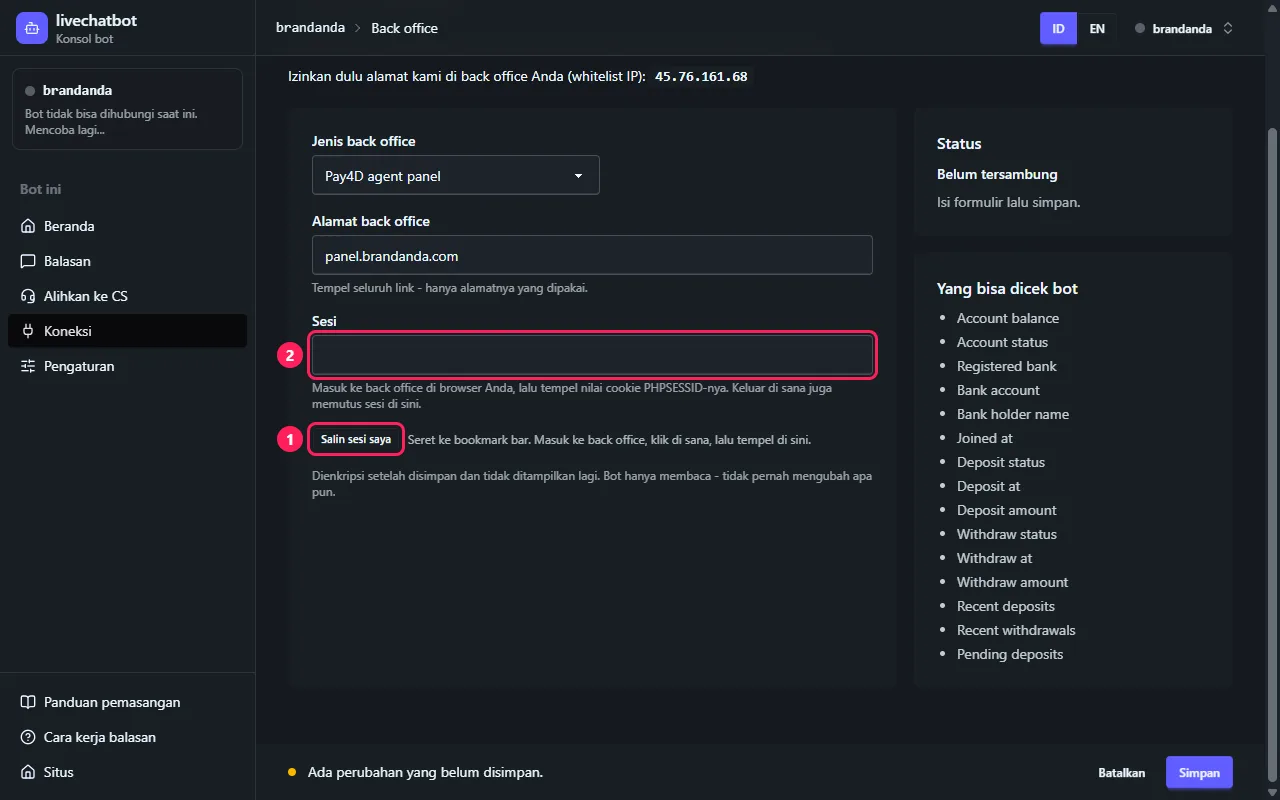
Beberapa back office tidak bisa dimasuki dari server: Anda masuk sendiri lalu menempel sesi Anda. Sebuah bookmark menyalinnya untuk Anda.
- 1 Seret Salin sesi saya ke bookmark bar - tombolnya muncul setelah alamat back office diisi (di Chrome, Ctrl+Shift+B menampilkan bar-nya).
- Masuk ke back office seperti biasa, di browser yang sama.
- Di halaman back office, klik bookmark Salin sesi saya. Muncul Tersalin.
- 2 Kembali ke sini, tempel di Sesi lalu Simpan.
Kalau muncul pesan bahwa halaman tidak mengizinkan bookmark membaca sesi, salin manual seperti di pesannya: F12, Application, Cookies, cookie yang disebut, Value. Keluar dari back office juga memutus sesi di sini.
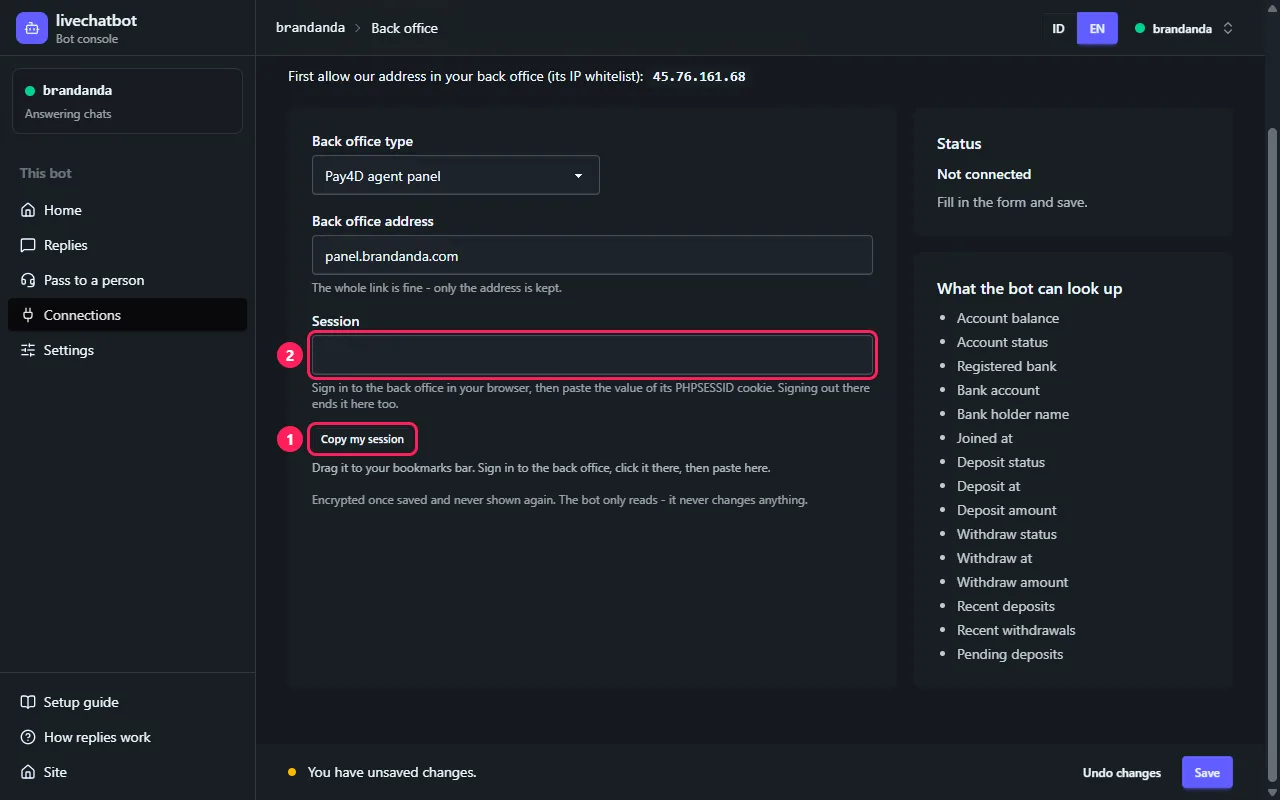
Some back offices cannot be signed in to from a server: you sign in yourself and paste your session. A bookmark copies it for you.
- 1 Drag Copy my session to your bookmarks bar - it shows once the back office address is in (in Chrome, Ctrl+Shift+B shows the bar).
- Sign in to the back office as usual, in the same browser.
- On the back office page, click the Copy my session bookmark. It says Copied.
- 2 Back here, paste into Session and Save.
If it says the page does not let a bookmark read the session, copy it by hand as its message says: F12, Application, Cookies, the cookie named there, Value. Signing out of the back office ends the session here too.
16. Lanjutan: agen bot LiveChat Advanced: a LiveChat bot agent instead
OWNER / ADMIN LiveChat LiveChat OWNER / ADMIN16.1 Koneksi, langkah 2: agen bot tanpa app Connections, step 2: a bot agent with no app yet
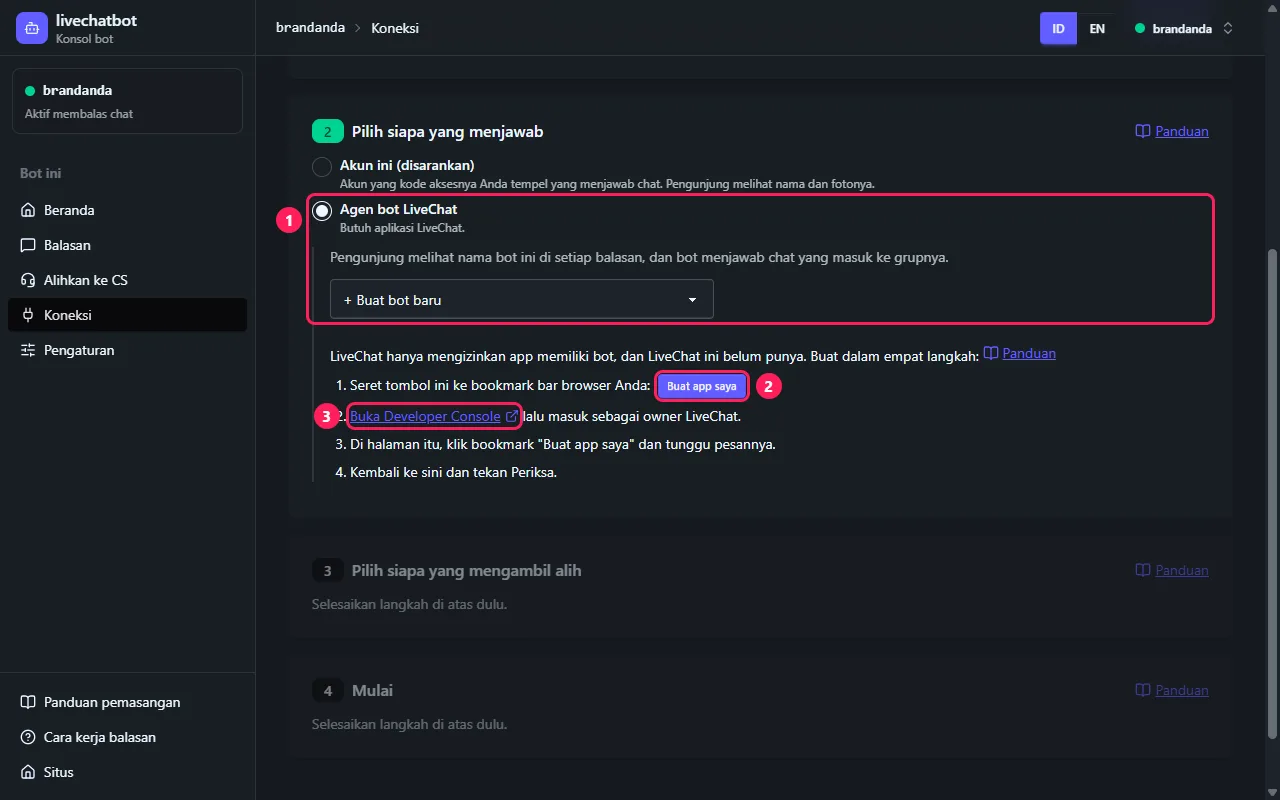
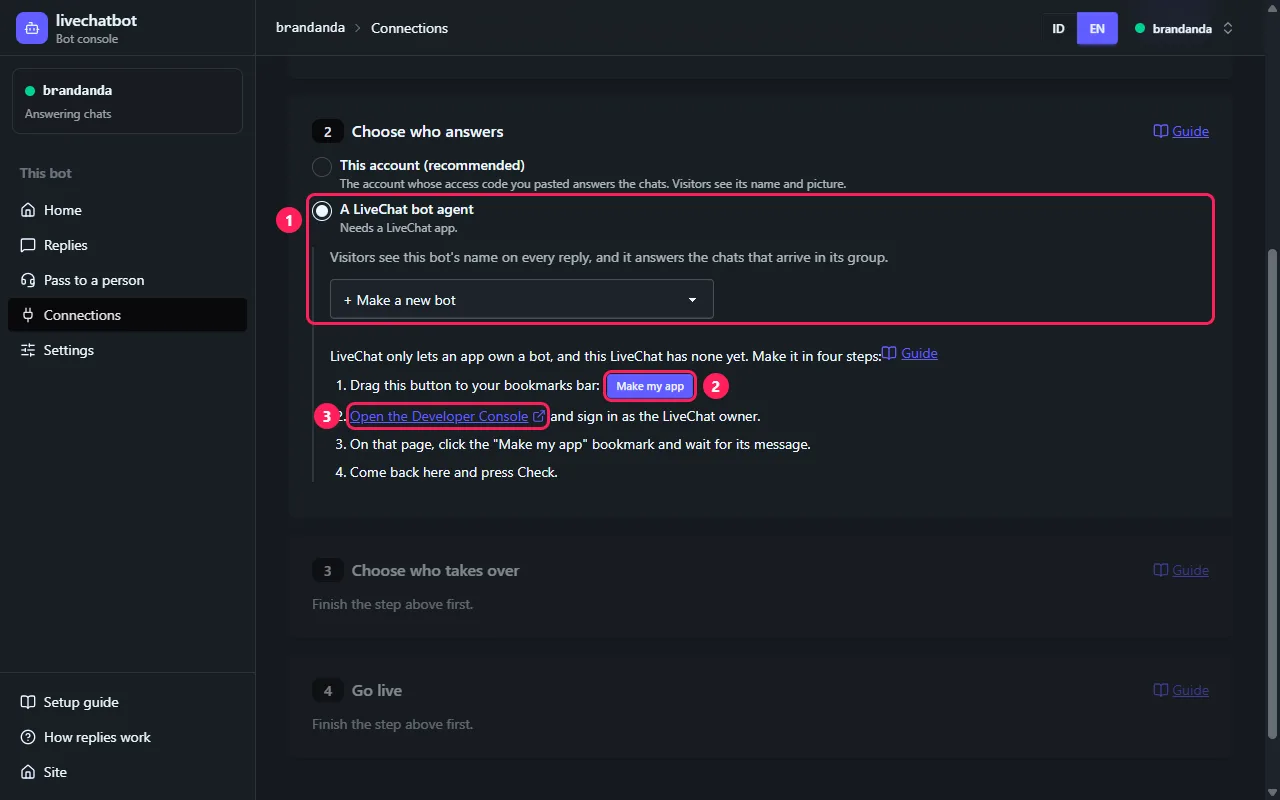
- 1 Agen bot LiveChat, lalu + Buat bot baru di daftar.
- Kalau belum ada app, muncul empat langkah. 2 Seret Buat app saya ke bookmark bar (di Chrome, Ctrl+Shift+B menampilkan bar-nya). Diklik di sini hanya meminta Anda menyeretnya: bekerja di Developer Console.
- 3 Buka Developer Console dan masuk dengan akun yang kode aksesnya Anda tempel (owner atau admin LiveChat).
- Di sana, klik bookmark Buat app saya dan tunggu pesannya.
- Kembali dan tekan Periksa. Formulir membuat bot muncul: namanya dan grupnya, lalu Buat botnya.
- 1 A LiveChat bot agent, then + Make a new bot in the list.
- With no app yet, four steps show. 2 Drag Make my app to your bookmarks bar (in Chrome, Ctrl+Shift+B shows the bar). Clicking it here only says to drag it: it works on the Developer Console.
- 3 Open the Developer Console and sign in with the account whose access code you pasted (the LiveChat owner or an admin).
- There, click the Make my app bookmark and wait for its message.
- Come back and press Check. The form to make the bot shows: its name and its group, then Make the bot.
| Pesan bookmark | Yang harus dilakukan |
|---|---|
| Selesai: app Anda sudah dibuat | Kembali ke Koneksi, tekan Periksa. |
| App Anda sudah ada | Tidak perlu membuat: kembali ke Koneksi, tekan Periksa. |
| Buka Developer Console dulu | Diklik di halaman lain. Buka Developer Console, lalu klik di sana. |
| Masuk ke Developer Console | Masuk dengan akun yang kode aksesnya Anda tempel, lalu klik lagi. |
| LiveChat menolak: ... bukan owner atau admin LiveChat | Akun itu tidak bisa membuat app. Buat kode akses baru dengan langkah 6.1 sampai 6.5, tapi masuk sebagai owner atau admin LiveChat - agen bot satu-satunya kasus yang bukan akun bot. Tempel di Koneksi, tekan Periksa. |
| Anda masuk ... dengan akun lain | Keluar dari Developer Console, masuk dengan akun yang kode aksesnya Anda tempel, klik lagi. |
| LiveChat tidak membuat app-nya | Coba lagi nanti, atau hubungi kami dengan angka yang ditampilkan. |
| The bookmark says | What to do |
|---|---|
| Done: your app is made | Back to Connections, press Check. |
| Your app is already there | Nothing to make: back to Connections, press Check. |
| Open the Developer Console first | It was clicked on another page. Open the Developer Console, then click it there. |
| Sign in to the Developer Console | Sign in with the account whose access code you pasted, then click it again. |
| LiveChat refused: ... not the LiveChat owner or an admin | That account cannot make apps. Make a new access code with steps 6.1 to 6.5, but signed in as the LiveChat owner or an admin - a bot agent is the one case where it is not the bot account. Paste it on Connections, press Check. |
| You are signed in ... with another account | Sign out of the Developer Console, sign in with the account whose access code you pasted, click it again. |
| LiveChat did not make the app | Try again later, or contact us with the number it shows. |
17. Daftar periksa terakhir Last checklist
- Akun agen khusus bot, dengan nama dan foto seperti CS biasa.
- Grup situs Anda: akun bot satu-satunya Primary agent, CS Anda sebagai Backup agent.
- Chat assignment grup itu: Auto assignment.
- Chat dari situs Anda masuk ke grup itu (routing rule-nya).
- Kode akses dibuat sebagai akun bot, dengan Select all; yang ditempel Base64 Encoded Token.
- Koneksi: semua baris hijau di langkah 1, 2 dan 3 - langkah 3 di grup yang sama - lalu Simpan.
- Bot dinyalakan di Beranda.
- Dicoba sebagai pengunjung: bot menjawab "halo".
- Kode akses tidak pernah dikirim lewat chat - atau sudah dihapus dan diganti.
- An agent account just for the bot, with a name and picture like any CS.
- Your website's group: the bot account the only Primary agent, your CS as Backup agents.
- Chat assignment for that group: Auto assignment.
- Chats from your site arrive in that group (its routing rule).
- The access code made as the bot account, with Select all; the Base64 Encoded Token pasted.
- Connections: every line green in steps 1, 2 and 3 - step 3 on that same group - then Save.
- The bot switched on at Home.
- Tried as a visitor: the bot answers "hello".
- The access code was never sent in a chat - or it was deleted and replaced.